
Overwhelmed by mountains of text data? In the world of digital marketing, especially in organic search and SEO, we are often faced with an overwhelming amount of information. Imagine implementing a classification Machine Learning algorithm, that can automatically classify documents (or other texts) in seconds!
With Google’s Natural Language API and Google Sheets, you can classify content in over 1,300+ categories in seconds. In the following guide, I will show you how, even without any coding experience, you can unlock the power of the text classification module of this API.
About the method: How does text classification work?
Text classification in machine learning deals with sorting text into predefined categories, or classes. The aim of the task is to automatically learn patterns in labeled examples (like emails marked spam or not spam) and then categorize new unseen text based on those patterns.
It is a supervised machine learning project, meaning that the model’s task is to predict the correct label of a given input data, following the training of the model. During training, the models is provided with a dataset pre-labeled examples, which enables it to become able to then classify new, unseen text into the categories.
The underlying technology (or algorithm used) is often either traditional model like Naive Bayes, Decision trees, or Support Vector Machines, or a deep learning neural network. Often word embeddings are also used to uncover semantic relationships of the words.
Text classification models help organize information, filter content, and gain insights from large amounts of text data.
About the model: Google Cloud’s Natural Language API
Imagine a vast library filled with knowledge about language structure, grammar structure, sentiment, and real world entities. That’s essentially what the Natural Language API draws from. It’s trained on massive amounts of text data, allowing it to:
- Identify key syntax elements and structures: It recognises nouns, verbs, phrases, and relationships between words, just like we do when we read, and can create more complex parsing structures like syntax trees.
- Understand context and entities: It goes beyond individual words, considering the surrounding text and even real-world knowledge to grasp the meaning of text via entity analysis.
- Detect sentiment: It can sense emotions like joy, anger, or sadness expressed in the text, not only at a document level (the entire text) but also at the entity level (sentiment associated with a specific entity mentioned in the text).
- Classify text: It has pre-training applied to identify whether the text you analyze aligns with either of more than 1,300+ categories
How it works
Google Cloud’s Natural Language API’s Content Classification module analyses a document and returns a content category that applies to the text found in the document. To classify the content in a document, call the classifyText method.
A complete list of content categories returned for the classifyText method are found in Google Cloud’s documentation files, depending on the model’s version: Version 1 content categories and Version 2 content categories.
The model essentially requires you to provide a text for it to analyze, and classify into one of the categories on its list. For each classification the model provides, there is an associated confidence score, which reflects how confident the model is that the text aligns to the category indicated.
Additional resources
Check out the additional resources by Google Cloud to practice working with this API, and the text classification module specifically:
Step-by-step guide on using the Natural Language API Text Classification Module in Google Sheets via Apps Script
Prerequisites
- You have a project set-up in Google Cloud – see how to create a project in Google Cloud
- For this project, you have enabled the Google Cloud’s Natural Language API – see how to enable a Google Cloud API
- You have billing enabled for your project – see how to enable billing for your project
Get your API key
Having selected your Google Cloud project, navigate to the APIs and Services menu > Credentials.
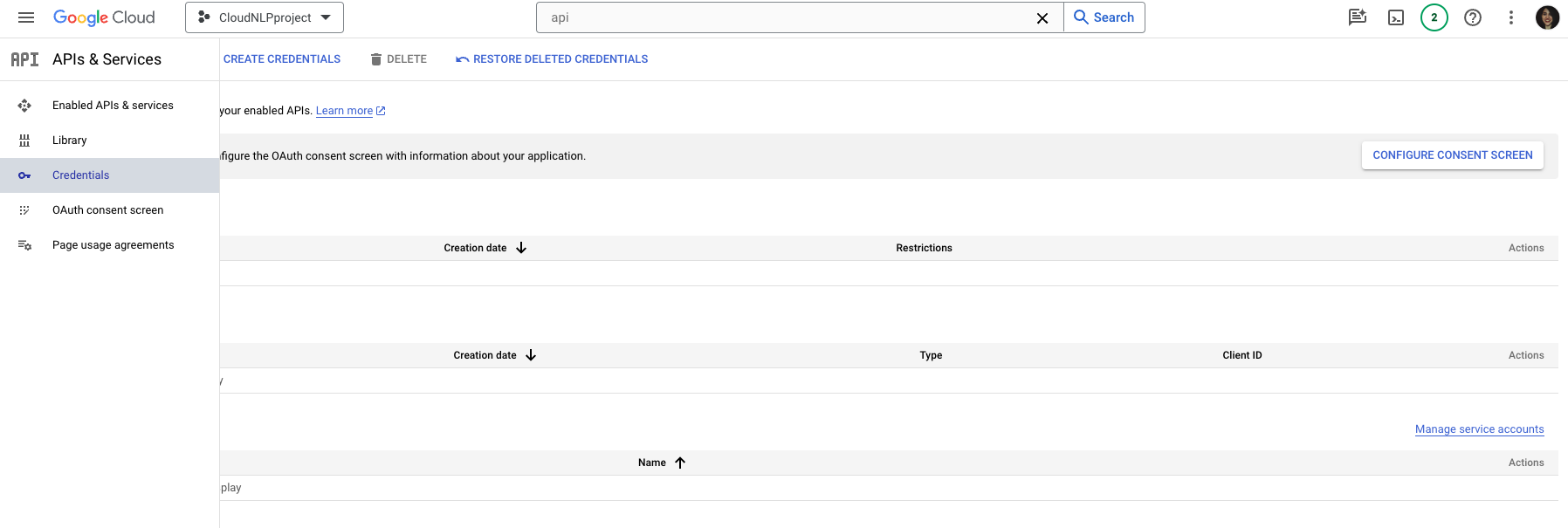
Then, click on the Create Credentials button from the navigation next to the page title, then select API Key from the drop-down menu.
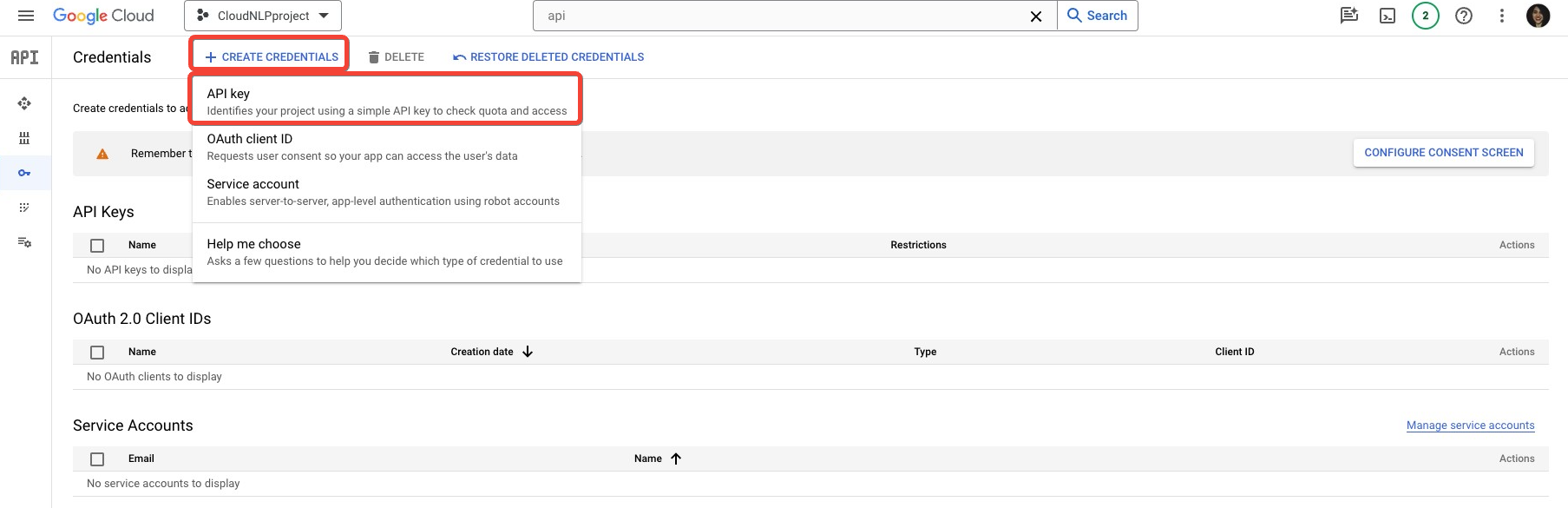
This is the easiest to use, but least secure method of authentication – you might consider alternatives for more complex projects.
Once you click on the Create API key button, there will be a pop-up menu that will indicate that the API key is being created, after which it will appear on the screen for you to copy.
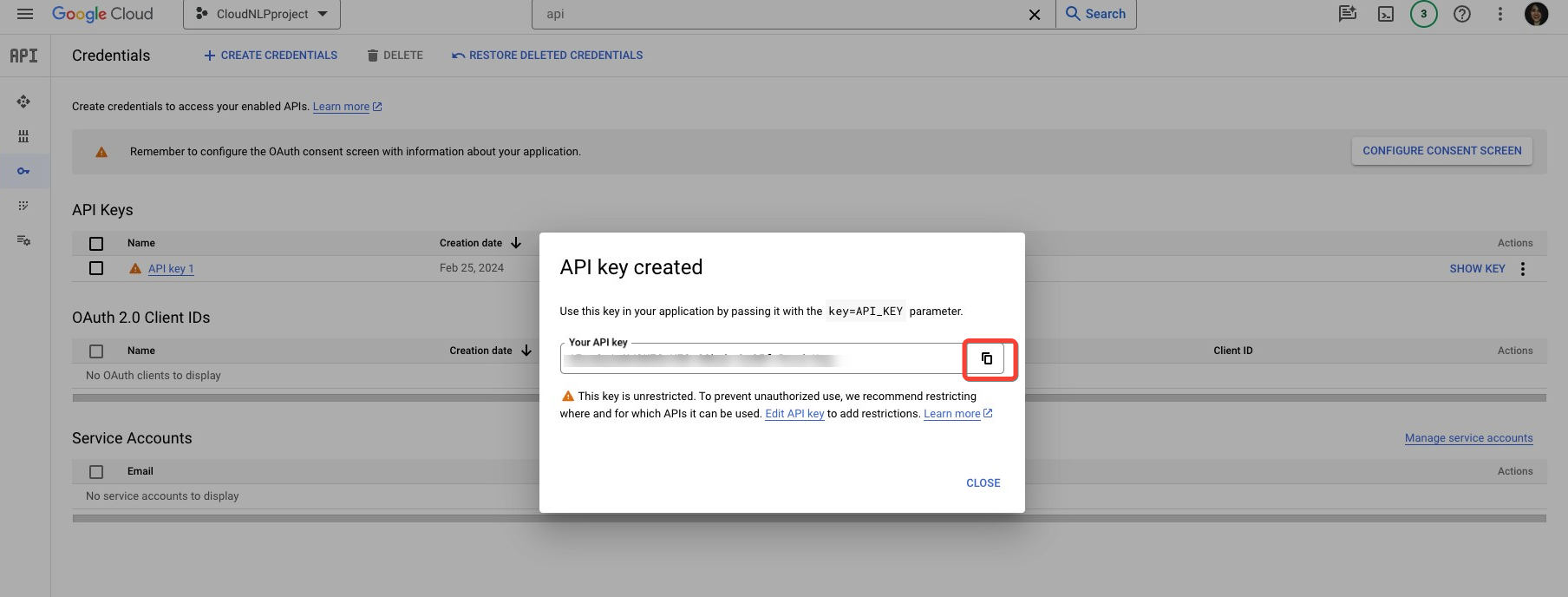
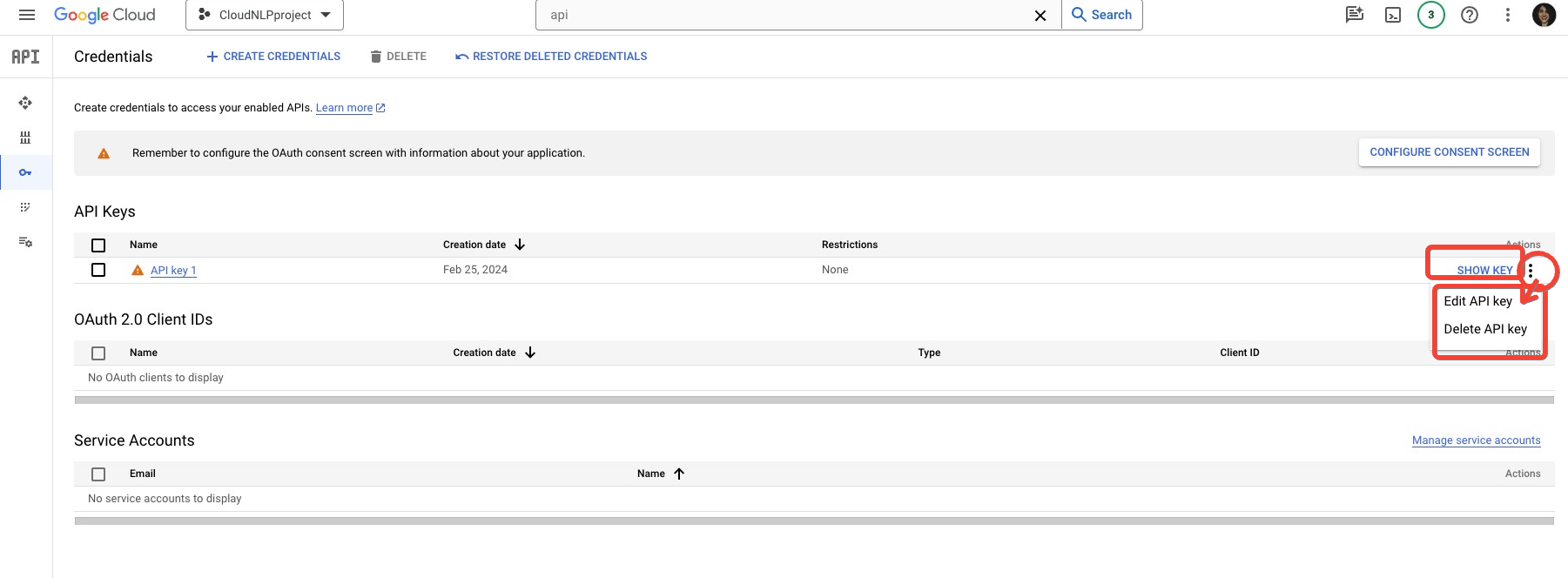
You can always navigate back to this section of your project, and reveal the API key at a later stage, using the Show Key button. If you ever need to edit or delete the API key, you can do so from the drop-down menu.
Extract and organise the text content you want to classify
The next step is to decide on and organise the content you want to classify into Google Sheets.
For a no-code content scraping approach, I recommend using Screaming Frog’s custom extraction function. The approach works in three simple steps:
- Finding the content selector: Navigate to the page/website section, from which you want to scrape content, and identify the selector that contains the content form the HTML
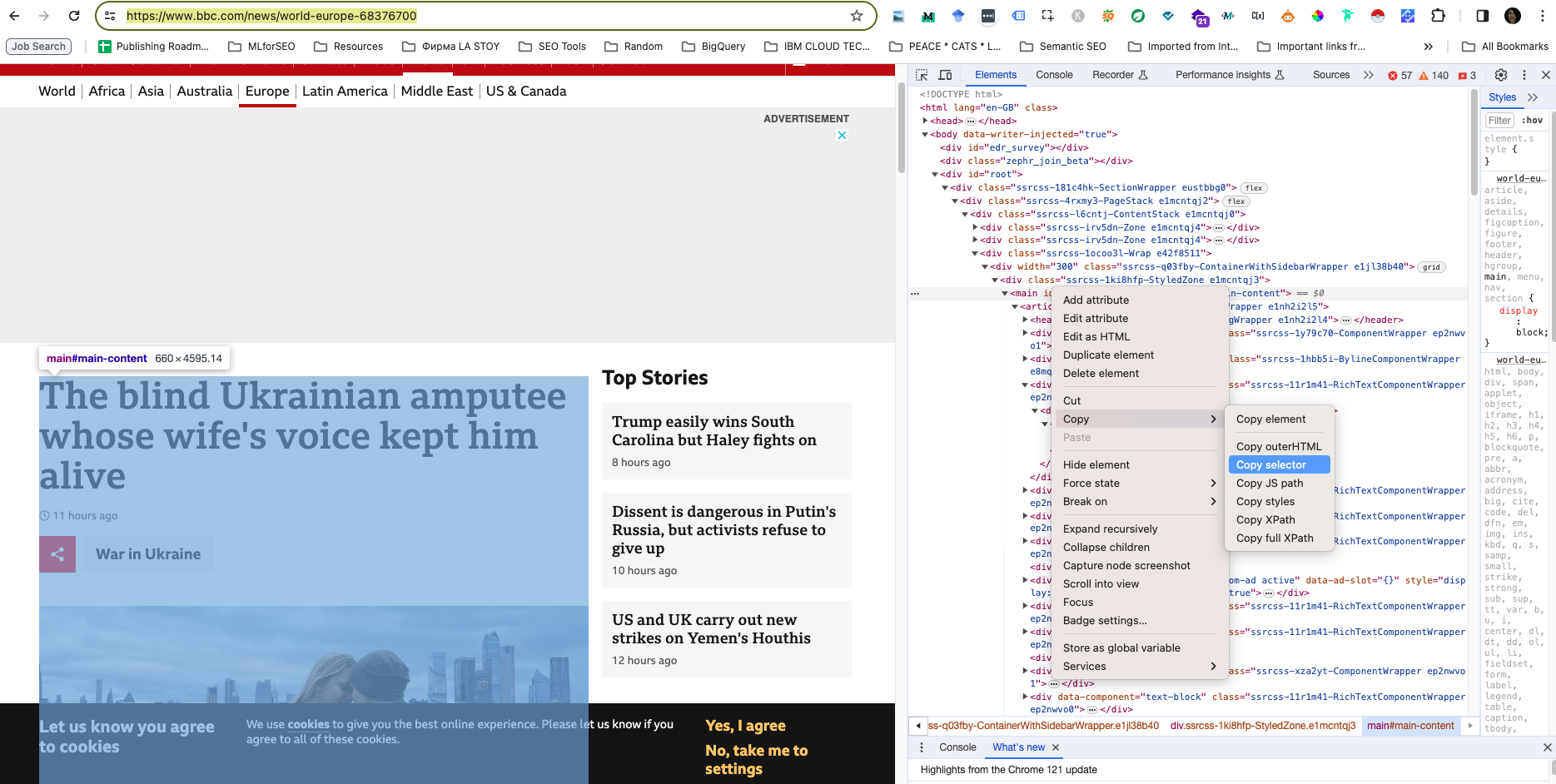
- Configuring the crawl: From the Copy menu, copy the setting you will use (e.g. Selector, X-path, etc.) and paste that into the custom extraction module in Screaming Frog, before starting your crawl.
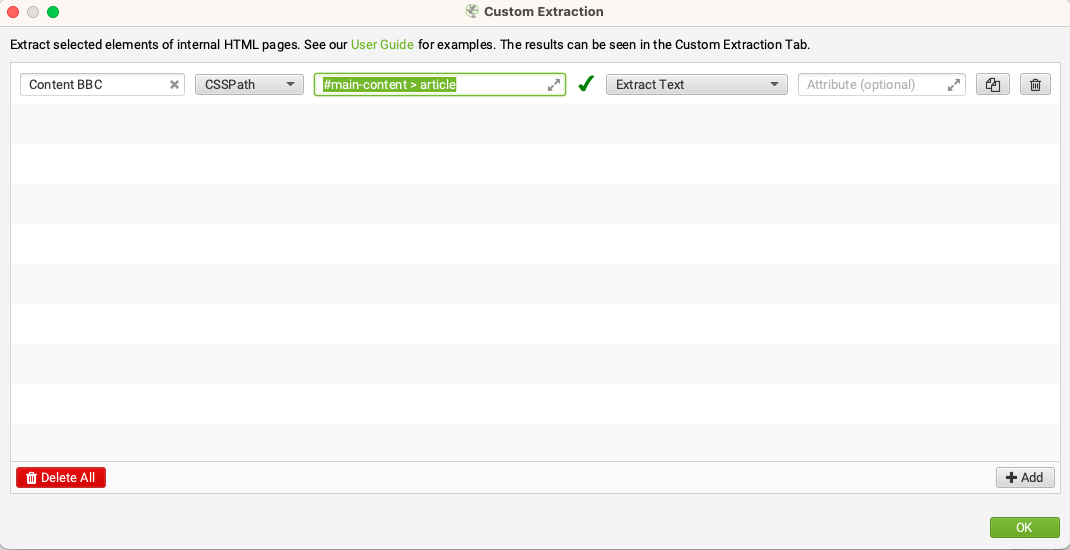
- Content Extraction: Run the crawl as usual, and find the data in the specified column, as per your extraction settings. Export your data in your desired format, e.g. Google Sheets, csv, or other.
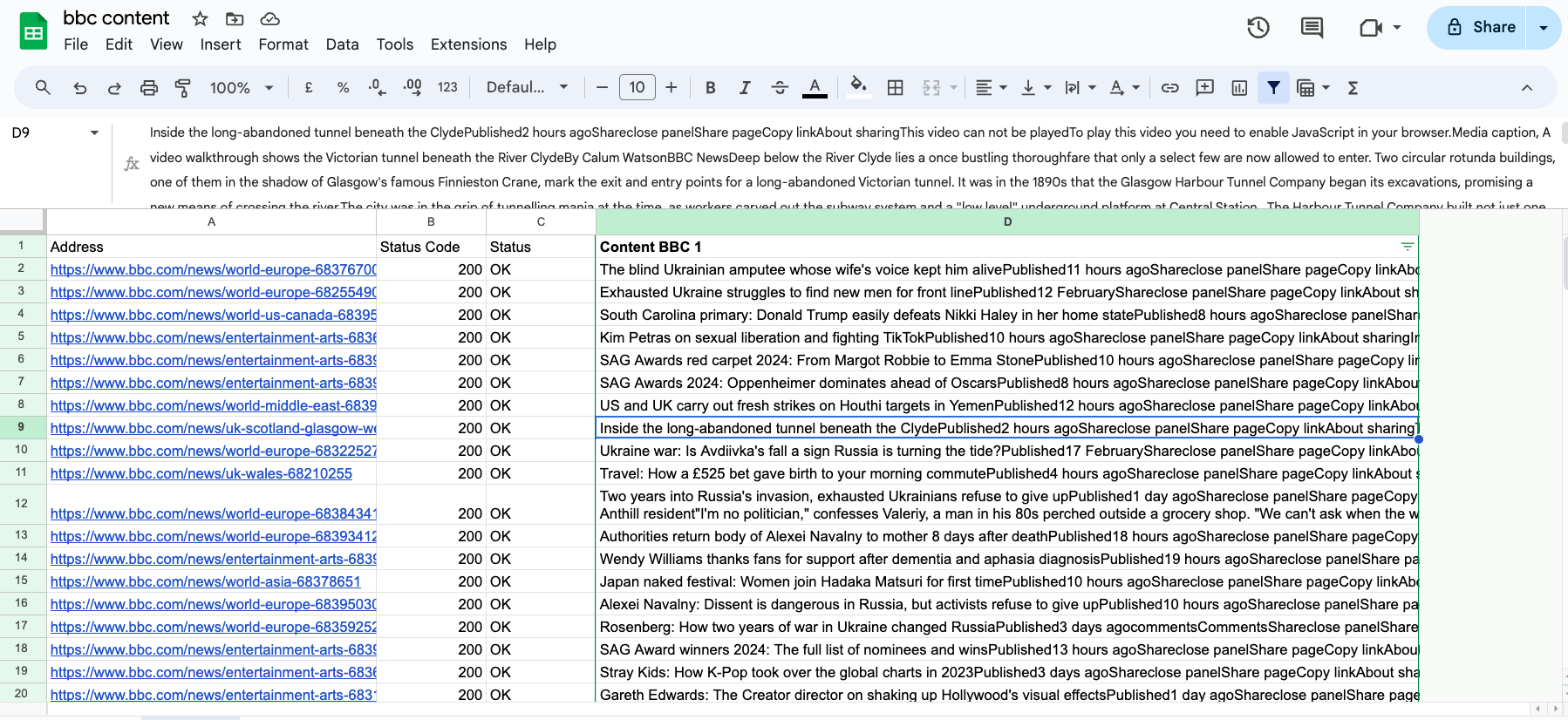
With this approach, you can quickly get a dataset of scraped content from web pages, or the HTML, depending on the extraction method you select.
You can also scrape content via alternative methods, using Python or third-party tools.
Once, you have your content extracted, you can move on to the next step.
Make a copy of the Google Sheets Template and paste your content and API key
To prepare the data for analysis, we need to do two things – organize the content for analysis, and paste the API key in the script.
Paste your API key
In Google Sheets, open the Extensions menu, and click on Apps Script.
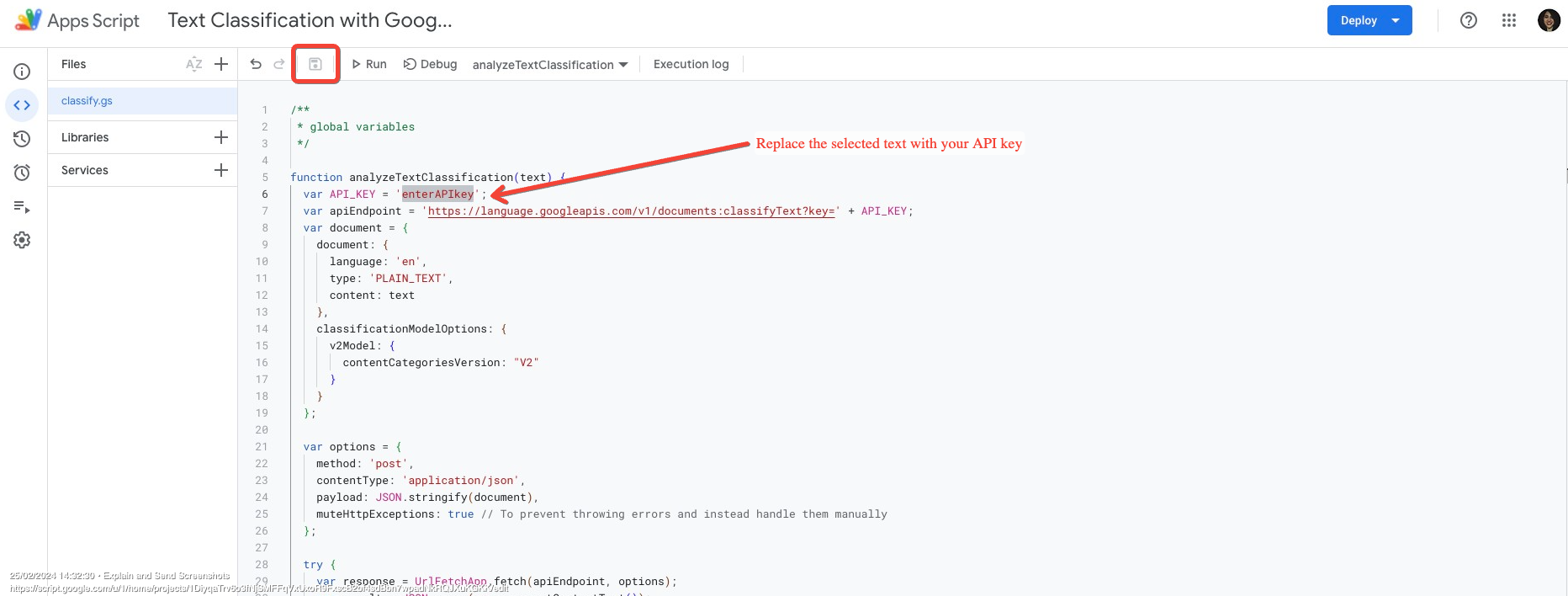
Open the classify.gs script attached, and select the text that says enterAPIkey. Replace it with your Google Cloud API project key. Then click on the disk icon to Save, and return to the Google Sheet file.
Paste and prepare your content for analysis
Paste your content for analysis in the Working Sheet, keeping the URL and content.
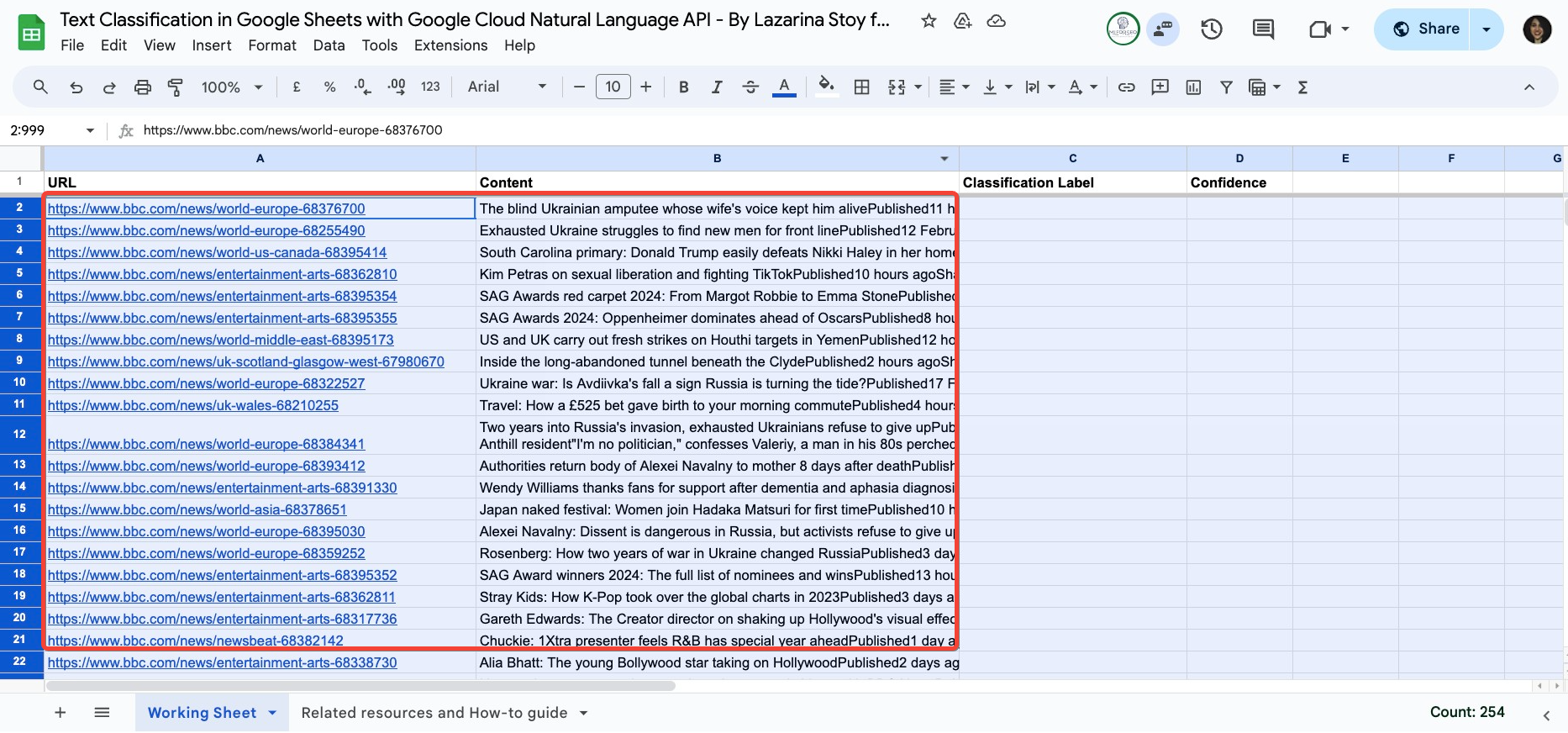
You can add any columns that you want to this file or perform any data cleaning or organisation operations you wish.
Make sure to the columns Classification Label and Confidence, where we will be pasting the results from the analysis.
Run the analysis to classify the provided text
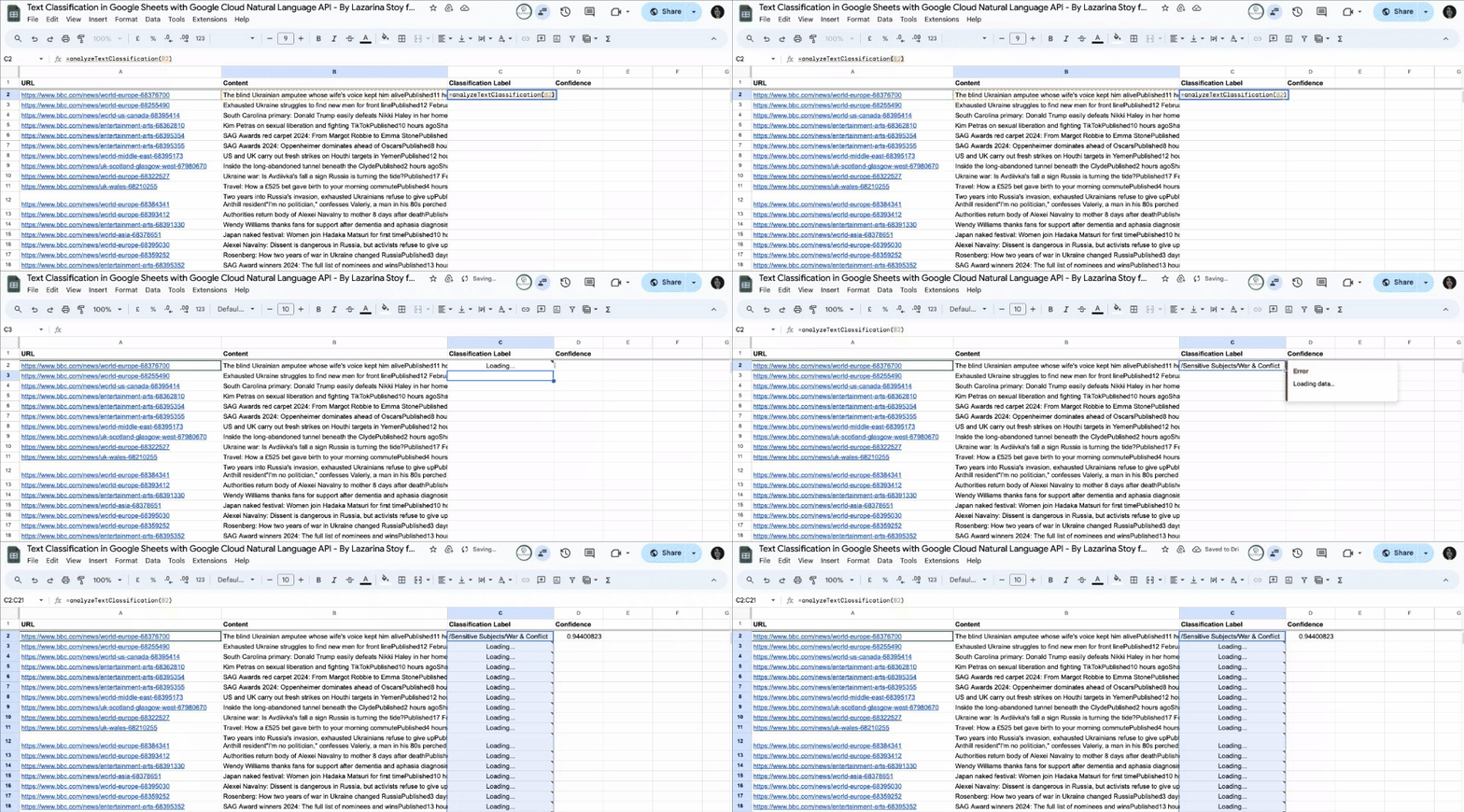
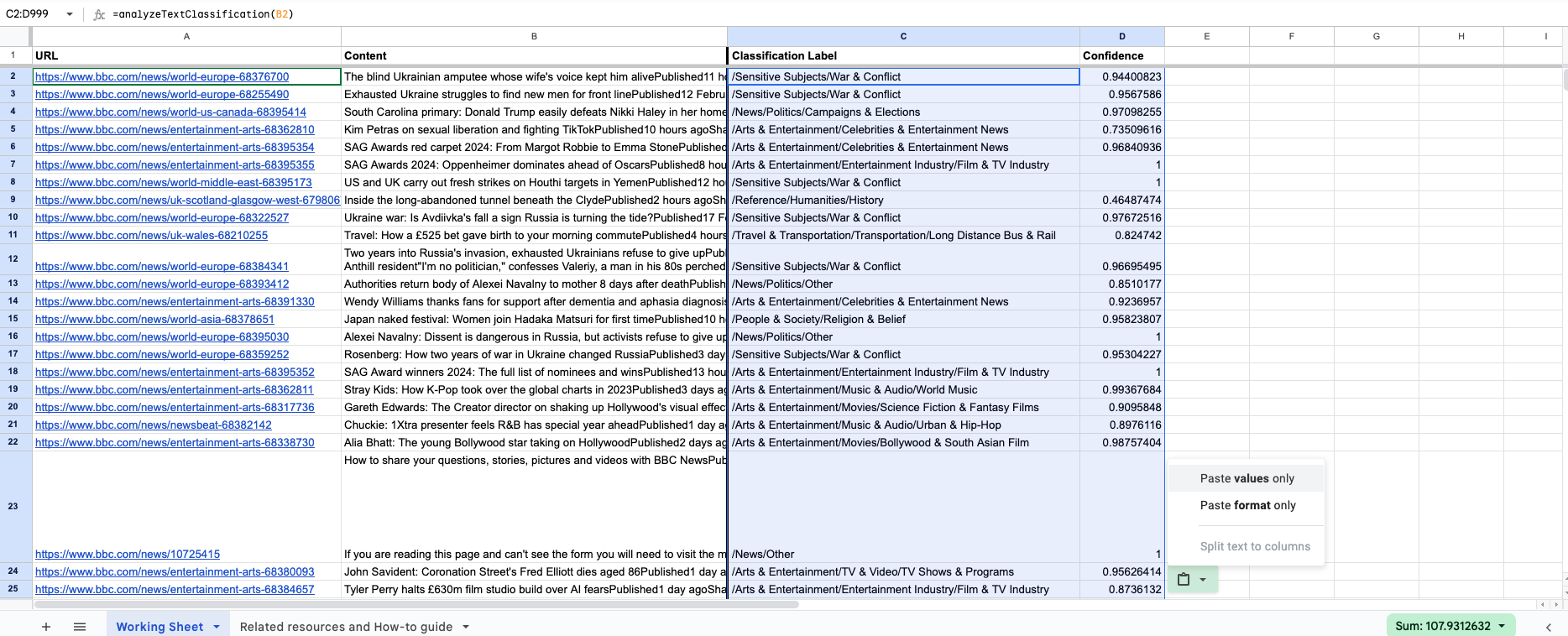
To run the analysis, enter in the Classification Label column the formula below, replacing “text” with the cell, where the content you want to classify is.
=analyzeTextClassification(text)
Press enter, and drag and drop for the remaining rows.
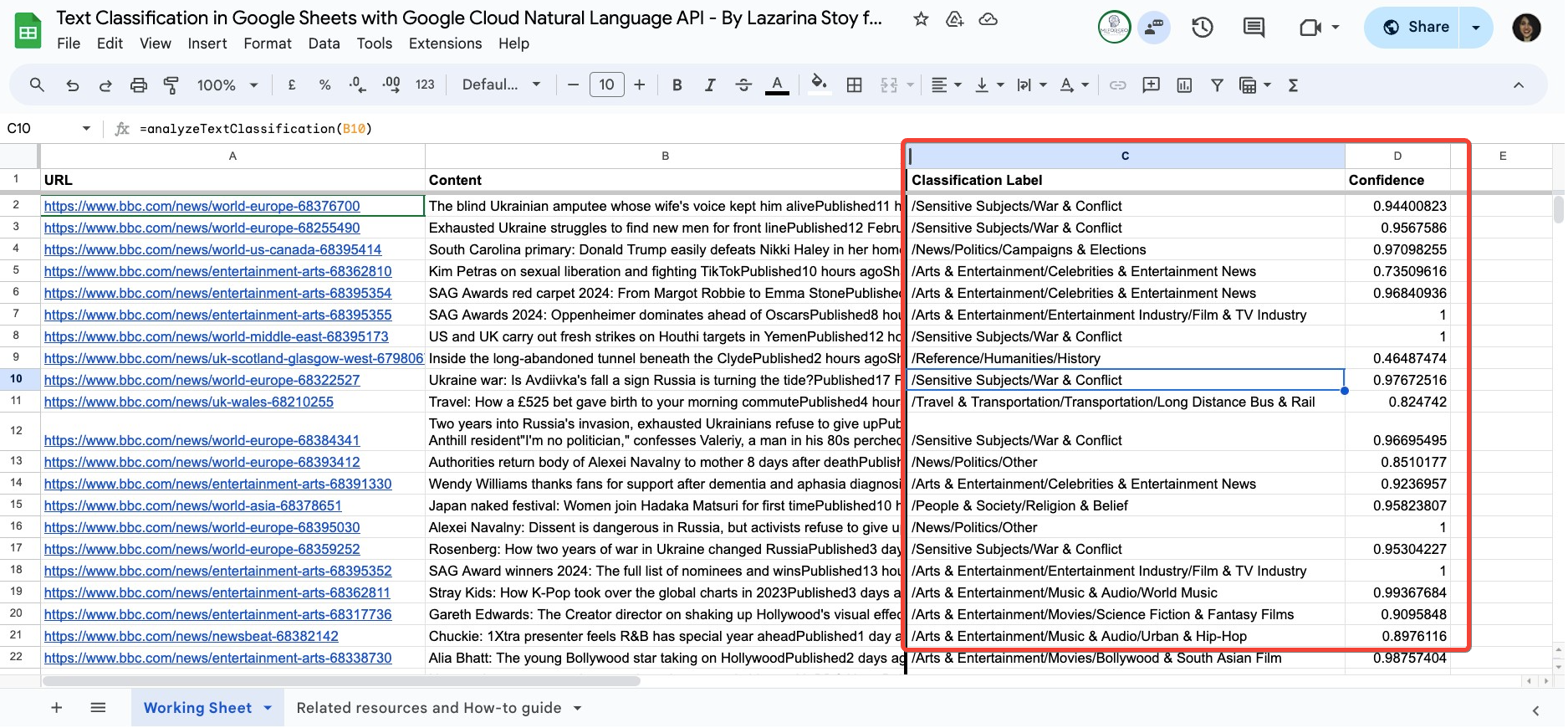
You can now review the output of how Google Cloud Natural Language API has classified your content, including the classification label and confidence score.
Visualise the text classification data (optional)
Although this step is optional, it is highly recommended that you visualize this data. For this purpose, I’ve created a handy Text Classification Looker Studio Dashboard Template, which allows you to:
- view all of your content classification labels, organised per primary, secondary, tertiary, and so on
- View classification labels at a glance with a summary of entries
- Deep dive into the structure of classification labels and understand the make-up of different primary and secondary labels
- View and filter with advanced filters (including Regex) individual page URLs, content, classification label
- Filter out classification labels with low confidence scores

Why use Google’s Natural Language API text classification in Google Sheets
Here are just some of the benefits of using the text classification module of Google’s Natural Language API in Google Sheets
- Quickly understand top content areas: Effortlessly organise, analyse, and gain insights from your text data using Google’s Natural Language API and Google Sheets.
- No coding required: The pre-built template and step-by-step guide make it easy for anyone to get started, regardless of technical expertise.
- Quickly merge insights with pre-existing tags or categories: Improve or replace your existing tags or site categories by comparing and contrasting them with the model’s output.
- Boost efficiency by harnessing automation: The process allows you to automate repetitive tasks, uncover hidden patterns, and make data-driven decisions with ease.
Learn how to implement the generated insights into your Organic Search strategy
Getting the data is one thing, learning how to analyse it and use it as part of Organic Search strategy is another. See the follow-up resources to learn how to harness this data to improve your strategy:
See what else you can do with to this API
As mentioned at the start, the Natural Language API has several additional capabilities that include entity extraction, entity sentiment analysis, document sentiment analysis, and syntax analysis. Explore other step-by-step guides on this topic by visiting the resources, linked below:

How to do content moderation with Google’s Natural Language API in Google Sheets (Apps Script)

How to do Syntax Analysis with Google’s Natural Language API in Google Sheets (Apps Script)

How to do Sentiment Analysis with Google’s Natural Language API in Google Sheets (Apps Script)

Lazarina Stoy is a Digital Marketing Consultant with expertise in SEO, Machine Learning, and Data Science, and the founder of MLforSEO. Lazarina’s expertise lies in integrating marketing and technology to improve organic visibility strategies and implement process automation.
A University of Strathclyde alumna, her work spans across sectors like B2B, SaaS, and big tech, with notable projects for AWS, Extreme Networks, neo4j, Skyscanner, and other enterprises.
Lazarina champions marketing automation, by creating resources for SEO professionals and speaking at industry events globally on the significance of automation and machine learning in digital marketing. Her contributions to the field are recognized in publications like Search Engine Land, Wix, and Moz, to name a few.
As a mentor on GrowthMentor and a guest lecturer at the University of Strathclyde, Lazarina dedicates her efforts to education and empowerment within the industry.
- Lazarina Stoy.

- Lazarina Stoy.

- Lazarina Stoy.
- Lazarina Stoy.