Images are, in my humble opinion, the most underappreciated asset a website has. They can be used strategically to improve rankings. They can rank in image search, bringing visitors to the site. They can help search engines (and now AI models) understand the rest of your content. And in 2026, they are increasingly the query itself: people point a camera at something, circle it on their screen or upload a photo, and ask a question about it.
So why do so many sites still treat images as decoration that someone uploads at the last minute, named Untitled-design-39.png?
This is the guide I wish I could have handed to every client and student who asked me “what should we actually do about images?” It covers:
- Image SEO fundamentals: file names, alt text, captions, formats (AVIF, WebP and friends), compression, responsive images, lazy-loading and LCP, image sitemaps, structured data, licensing metadata and IPTC.
- Advanced tactics: image CDNs, Google Discover and large images, how Google Images decides what to show, infographics and link earning, original imagery versus stock, and AI-generated image disclosure with C2PA content credentials.
- Multimodal search: Google Lens, Circle to Search, multimodal queries in AI Mode, how vision-language models actually read images, image embeddings, images in AI Overviews, ChatGPT and Gemini image understanding, and how to optimise for visual search.
- Machine learning for image SEO at scale: auditing images with Screaming Frog, drafting alt text with vision models (and why you must not trust it blindly), and classifying and de-duplicating images with CLIP embeddings.
Updated October 2026: two guides, merged and rebuilt
In 2021 I published two posts on lazarinastoy.com: a beginner’s guide to image and infographics SEO, and a guide to advanced image SEO practices. This guide merges both, re-checks every recommendation against Google’s current documentation, and adds everything that has changed since. The headlines:
- AVIF is now supported in Google Search (since August 2024), and browser support for AVIF and WebP is effectively universal.
- Image sitemaps got simpler: Google dropped the caption, title, geo location and licence tags in 2022. Only
<image:loc>is left. - Native lazy-loading works everywhere, and the advice is now as much about what not to lazy-load (your LCP image).
- Google added a “preferred image” section to its docs in March 2026:
primaryImageOfPage, the main entity’s image andog:imageall help. - AI-generated images have labels (IPTC digital source type, C2PA content credentials), and Google surfaces them in “About this image”.
- Search is multimodal. Lens, Circle to Search and AI Mode turn images into queries, and Search Console now has a “Multimodal” search type.
I’ve also built a free script and Colab notebook that audits the images on any list of pages, drafts alt text with an open vision model, classifies your images and finds near-duplicates with CLIP: grab it from the MLforSEO code hub. I tested it on a handful of public pages, and I share what I found (including the embarrassing bits for the AI models) in the last part of this guide.
How search engines understand an image
Before we get into the checklist, it helps to know what you are optimising for. Google is refreshingly direct about this in its image SEO best practices: it uses alt text “along with computer vision algorithms and the contents of the page to understand the subject matter of the image”. It also extracts information “from the content of the page, including captions and image titles”, and it builds the title and snippet it shows in Google Images from sources including the page’s title and meta tags.
In other words, an image is never judged alone. It’s judged as part of a page. Here’s how I think about the signals:
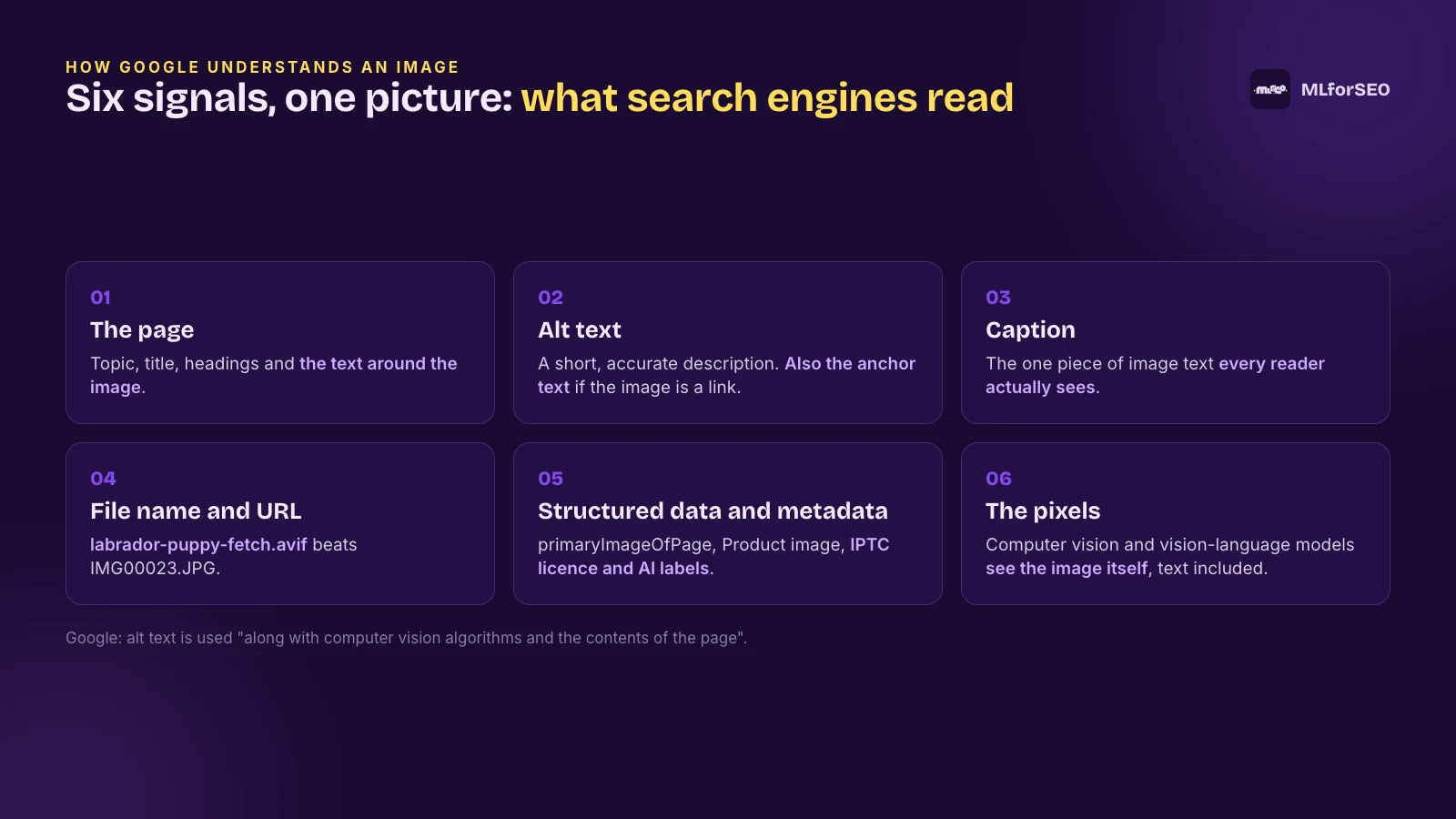
Two things have changed since I first wrote about this. First, the “pixels” signal has become much stronger: modern vision models can recognise objects, read text inside images and describe a scene in detail. Second, the same understanding now powers features where the image is the query (Lens, Circle to Search, AI Mode). That doesn’t make the text signals less important. If anything, it makes consistency between what the image shows and what the page says more important than ever.
Make pages for users, not for search engines. Google said it about image publishing in 2021, and it’s still the best one-line summary of image SEO I know.
Part 1: Image SEO fundamentals
Let’s start with the checklist every image on your site should pass. None of this is glamorous, but it’s where most of the wins are. The WebAIM Million 2026 report, which tests the home pages of the top one million websites, found missing alt text on 53.1% of them, with an average of 10.8 images per page missing alt text (WebAIM, February 2026 data). The basics are still not done.
1. Use a relevant image that matches your text
Good content on your page is just as important as the visual content itself. Page content may be used to generate the text snippet for the image, and Google considers the quality of the page when ranking images.
Make sure your visual content is relevant to the topic of the page. Images should be displayed only where they add original value. A photo of a handshake on a page about payroll software adds nothing, for users or for search engines.
2. Provide all the context you can, and place images near relevant text
Whenever possible, place images near the text they illustrate. Google’s own wording: “Make sure images are placed near relevant text and on pages that are relevant to the image subject matter” (Google Search Central). When it makes sense, place the most important image near the top of the page.
Descriptive titles, captions and surrounding text all feed into the title and snippet Google Images generates for each result, which helps users decide whether to click.
3. Use real HTML images, not CSS backgrounds
Semantic markup means writing your HTML so that it reinforces the meaning of the content rather than its appearance. For images, that means using the <img> element. Google parses the HTML of your pages to find images, and it’s explicit: “Google doesn’t index CSS images.”
- Recommended:
<img src="puppy.jpg" alt="A golden retriever puppy" /> - Not great:
<div style="background-image:url(puppy.jpg)">A golden retriever puppy</div>
CSS backgrounds are fine for purely decorative textures and gradients. Anything you’d like to appear in Google Images, Lens results or AI answers should be an <img> (or a <picture> element with an <img> fallback inside it).
4. Give the file a descriptive name
Search engines extract information about the subject of an image from the page, the captions and the image titles, but also from the file name itself. Name the image something descriptive of its content, with words separated by dashes:
- Generic:
IMG00023.JPG - Descriptive:
my-new-baby-labrador-retriever.jpg
Google’s own example is nearly identical (my-new-black-kitten.jpg is better than IMG00023.JPG), and it adds two practical points. Keep file names short but descriptive, and if you localise images, translate the file names too. One caveat from me: don’t go back and rename thousands of existing images purely for SEO. The gain is small, and every rename changes the image URL, which Google then has to rediscover. If you do rename or convert (say, from JPEG to AVIF), redirect the old image URLs.
Related: Google asks you to “consistently reference the image with the same URL, so that Google can cache and reuse the image” (clarified in the docs in May 2025). If the same logo or product photo appears on 500 pages, it should be one URL, not 500 copies with different query strings.
5. Make the most of your alt text (and skip the title attribute)
The alt text is an absolute must if you want to be on good terms with search engines, and, more importantly, with the people using screen readers. The caption helps with easier scanning of the page. The title attribute is mostly unnecessary if there’s enough context in the text around the image.
You might be asking: what is the difference between alt text and a caption? The alt text describes the image for search engines and screen readers, while the caption describes the image for all users. The alt text only appears in the source code (and when the image fails to load), while the caption is what you see below or above an image.
When writing alt text, focus on useful, information-rich descriptions that use keywords appropriately and in the context of the page. Here are Google’s own examples, which I still use in every training session:
- Not ideal (missing alt text):
<img src="puppy.jpg"/> - Not ideal (keyword stuffing):
<img src="puppy.jpg" alt="puppy dog baby dog pup pups puppies doggies pups litter puppies dog retriever labrador wolfhound setter pointer puppy jack russell terrier puppies dog food cheap dogfood puppy food"/> - Needs improvement:
<img src="puppy.jpg" alt="puppy"/> - Recommended:
<img src="puppy.jpg" alt="Dalmatian puppy playing fetch"/>
A few rules of thumb I’ve refined since 2021:
- Keep it short and specific. I used to say six to eight words. That still works for most photos, but there is no official limit. Many accessibility practitioners aim for roughly 125 characters or less, because long alt text is tiring to listen to. Say what matters about the image on this page.
- Decorative images get an empty alt (
alt=""). Not a missing alt attribute: an empty one. The W3C alt decision tree is the best five-minute read on when to use which. - Linked images: the alt text acts as the anchor text of the link, so describe where the link goes.
- Complex images (charts, infographics, diagrams): a short alt that names the topic, plus the actual information in the page text or a linked long description. For an infographic, a good alt includes the topic and the word “infographic”.
- Don’t start with “image of” or “picture of”. Screen readers already announce it as an image.
How much does alt text matter for rankings? Google’s John Mueller has said that alt text really helps Google understand images for image search, while for web search it is treated like any other text on the page (Search Engine Journal, March 2022). So: essential for Google Images and accessibility, a small bonus for web search, and a waste of time when stuffed.
6. Write captions people actually read
Captions are the most visible text attached to an image, and they’re often the most-read text on a page after headings. Use <figure> and <figcaption> so the relationship between the caption and the image is explicit in the HTML. A caption doesn’t need to repeat the alt text; it can add the context the image can’t show (who, when, the source, why it matters).
7. Choose the right image format
Google Search supports images in the following formats: BMP, GIF, JPEG, PNG, WebP, SVG and AVIF (Google Search Central). AVIF joined the list in August 2024 (Search Central blog). Here’s how I’d choose today:
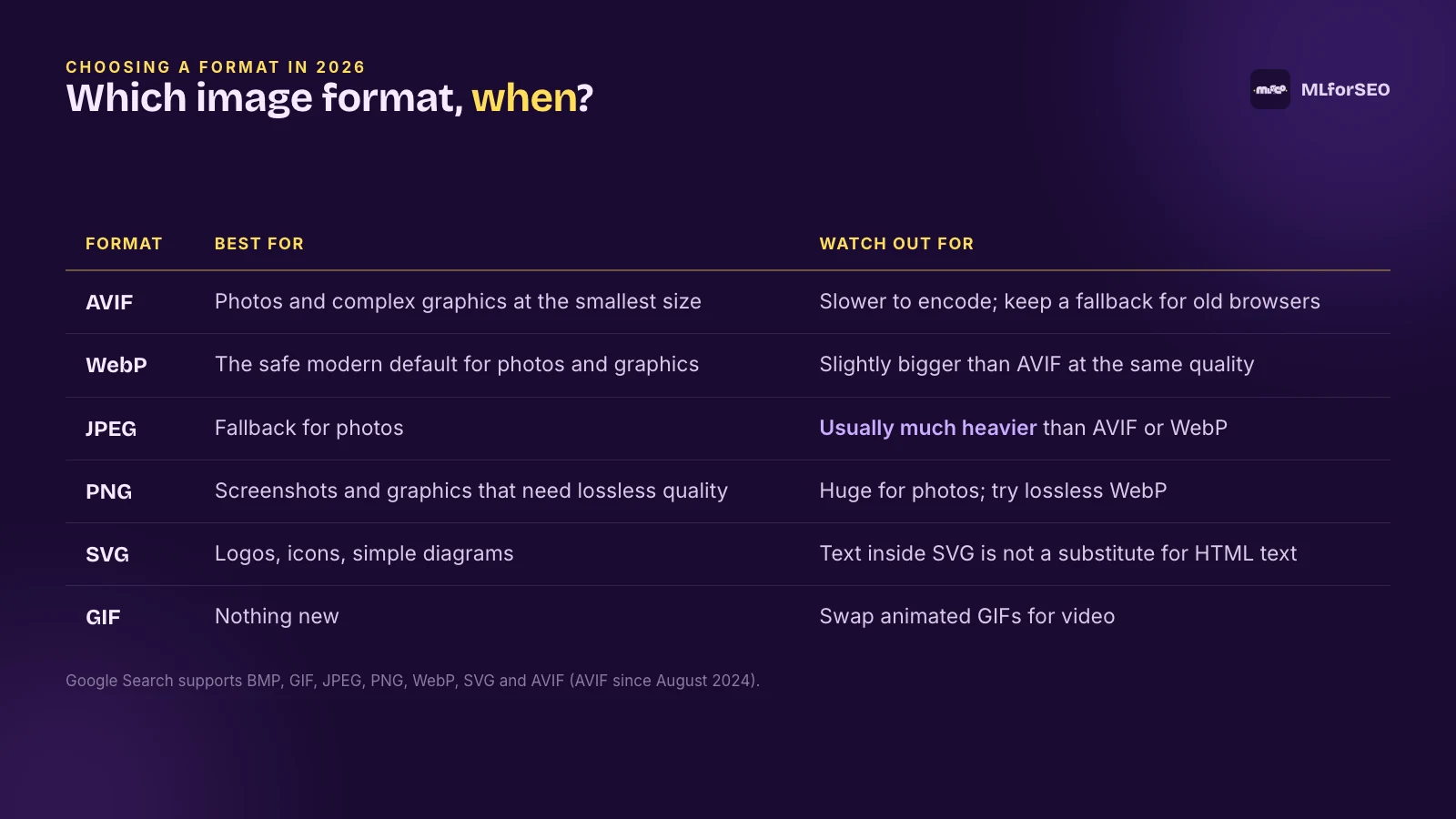
- Use AVIF or WebP instead of JPEG and PNG for photos and most graphics. They produce high-quality results at much smaller file sizes. You can use tools like Squoosh to compare formats side by side. As of October 2026, caniuse reports global browser support of about 97% for WebP and 96% for AVIF.
- Use SVG for logos and icons. With CSS or JavaScript you can resize and recolour them without any loss of quality. Remember that text inside an SVG is not a substitute for real HTML text.
- Replace animated GIFs with video. A short MP4 or WebM loop is usually a fraction of the size.
- Keep a fallback with the
<picture>element if you serve AVIF, so the rare browser that can’t decode it still gets a JPEG.
The web is still catching up here. In the HTTP Archive’s 2024 Web Almanac, AVIF made up just 1% of image requests on mobile pages and WebP 12%, while JPEG (32.4%) and PNG (28.4%) still dominated (Web Almanac 2024, Media chapter). That’s a big, easy opportunity for most sites. (One to watch: Chrome shipped JPEG XL decoding in Chrome 155, according to the Chrome blog. Google Search doesn’t list it as a supported format, so don’t switch to it for SEO yet.)
If you’re on WordPress, you can upload WebP (since WordPress 5.8) and AVIF (since 6.5) directly, and image CDNs (more on those below) can convert on the fly.
8. Compress for faster loading
Compressing your images before uploading lets them load faster, which is good for users and for your page experience. There are many free services that compress files without visible quality loss, such as TinyPNG and CompressPNG, plus Squoosh for format conversion.
A practical example from this very post: the diagrams I made for it were 130 to 180 KB each as PNGs. Saved as WebP at quality 88, they’re 45 to 65 KB, with no visible difference. That’s roughly a 65% saving for one line of code.
Is there a magic file size? No. Google doesn’t publish one. Screaming Frog flags images over 100 KB by default, and my script uses 200 KB. What matters is the total weight on the page and, above all, how fast the main image loads (which brings us to responsive images and LCP).
9. Use responsive images
Images should have the srcset attribute, which lets the browser pick a different version of the same image depending on the screen width and pixel density. Since Google completed its move to mobile-first indexing in October 2023, the mobile version of your page is the one Google indexes, so this matters for SEO as well as speed.
The srcset attribute specifies the different versions of the image; sizes tells the browser how wide the image will be displayed at different screen widths, so it can choose the right file before the layout is calculated:
<img srcset="example-320w.jpg 320w,
             example-480w.jpg 480w,
             example-800w.jpg 800w"
     sizes="(max-width: 320px) 280px,
            (max-width: 480px) 440px,
            800px"
     src="example-800w.jpg"
     alt="Responsive web design shown on a phone, a tablet and a laptop"
     width="800" height="450">
And here’s the modern version, which combines responsive sizes with format fallbacks using <picture>. Google supports both, and asks you to “always specify a fallback URL using the src attribute”:
<picture>
  <source type="image/avif"
          srcset="labrador-800.avif 800w, labrador-1600.avif 1600w"
          sizes="(max-width: 800px) 100vw, 800px">
  <source type="image/webp"
          srcset="labrador-800.webp 800w, labrador-1600.webp 1600w"
          sizes="(max-width: 800px) 100vw, 800px">
  <img src="labrador-800.jpg"
       alt="Chocolate Labrador puppy resting on an orange blanket"
       width="800" height="533">
</picture>
Good news if you’re on WordPress: since version 4.4, WordPress automatically adds srcset and sizes to images in your content. For other platforms, check your templates. In the 2024 Web Almanac, 42% of mobile pages used srcset at all, and the sizes attribute was too large on most of the pages that did use it, so browsers download more than they need.
10. Make sure image dimensions are set
Adding width and height attributes to your <img> markup became useful again after changes in CSS that every major browser adopted: the browser uses them to work out the aspect ratio and reserve the space before the image loads. Without them, the text jumps around as images appear, which hurts your Cumulative Layout Shift (CLS). Pair the attributes with height: auto in your CSS so responsive images still scale (web.dev on CLS). A good CLS score is 0.1 or less.
11. Lazy-load offscreen images, but never your LCP image
Lazy-loading is a technique that postpones loading offscreen images until the user scrolls near them. Without it, every image on a long page loads at once, which slows the page down and wastes data.
In 2021, I explained that Chrome had supported the native loading attribute since August 2019, but that it didn’t always work outside Chrome, so you needed to check which browsers your visitors used before relying on it. That caveat is gone: Firefox added support in version 121 and Safari in 16.4, so all major browsers now support it (web.dev). Adding it is as simple as:
<img src="cat.jpg" loading="lazy" alt="Ginger cat asleep on a windowsill" width="800" height="600">The attribute takes lazy (load when it’s in or near the viewport) or eager (load straight away, which is the default). The auto value I listed in the original post never made it into the standard, so ignore it.
The JavaScript libraries Google used to recommend (lazysizes, lozad.js, blazy, yall.js, react-lazyload) are still around, but for plain images you rarely need them now. If you do use JavaScript lazy-loading, follow Google’s lazy-loading guidance: load content when it enters the viewport (for example with IntersectionObserver), because “Google Search does not interact with your page”. Googlebot doesn’t scroll or click, so anything that only loads after a scroll event may never be seen. Check the rendered HTML with the URL Inspection tool.
Now the part that’s more important than any of the above: don’t lazy-load the image that’s likely to be your Largest Contentful Paint (LCP) element. Images are the LCP element on 73.3% of mobile pages, and in 2024, 16% of mobile pages with an image LCP were lazy-loading it (9.5% natively, 6.7% with JavaScript), which delays the most important thing on the page (Web Almanac 2024, Performance chapter). A good LCP is 2.5 seconds or less at the 75th percentile (web.dev).
For your hero or main product image, do the opposite: load it eagerly and give it a priority hint.
<!-- the main image: no lazy-loading, high priority -->
<img src="hero-1600.avif" alt="..." width="1600" height="900" fetchpriority="high">

<!-- everything further down the page -->
<img src="chart.avif" alt="..." width="800" height="500" loading="lazy">
fetchpriority="high" is supported in Chrome, Edge, Firefox (132+) and Safari (17.2+). In web.dev’s example, adding it to the main image on Google Flights cut LCP from 2.6 to 1.9 seconds (web.dev). One more 2025 change: Lighthouse 13 removed the old “Defer offscreen images” audit (browsers already deprioritise offscreen images) and folded several image audits into a single “Improve image delivery” insight (Chrome for Developers).
If you want to read in depth about lazy-loading images and video, the web.dev library is still the best resource: using lazy-loading to improve loading speed, lazy-loading images, lazy-loading video and browser-level image lazy-loading.
12. Use image sitemaps (the simplified 2026 version)
XML sitemaps help crawlers find and navigate your URLs faster, and Google’s image extension lets you list the images on each page. Google is clear that image sitemaps help it discover images it might not otherwise find, such as images your site loads with JavaScript.
What’s changed: in May 2022 Google deprecated most of the image sitemap tags. <image:caption>, <image:title>, <image:geo_location> and <image:license> are gone. The current documentation supports just two tags: <image:image> and <image:loc>, with up to 1,000 images per page.
<?xml version="1.0" encoding="UTF-8"?>
<urlset xmlns="http://www.sitemaps.org/schemas/sitemap/0.9"
        xmlns:image="http://www.google.com/schemas/sitemap-image/1.1">
  <url>
    <loc>https://example.com/labrador-puppy-guide/</loc>
    <image:image>
      <image:loc>https://cdn.example.com/images/chocolate-labrador-puppy.avif</image:loc>
    </image:image>
    <image:image>
      <image:loc>https://cdn.example.com/images/labrador-colours-infographic.webp</image:loc>
    </image:image>
  </url>
</urlset>
Two useful details. You can list image URLs on other domains (your CDN, for example), which you can’t do in regular sitemaps. And licensing information that used to live in the sitemap now belongs in structured data or IPTC metadata, which I cover below. Most SEO plugins, including Rank Math, can add images to your sitemaps automatically.
13. Add structured data, and tell Google which image you prefer
Structured data is a standardised format for describing a page so that search engines understand it better. For images, it does three jobs.
Rich results. Google’s documentation still says that if you include structured data, Google Images can display your images in certain rich results, including a prominent badge, and that the image property is required for that. In 2021 I listed Product, Video and Recipe as the supported types. Those types still carry images into rich results across Search, so make sure every Product, Recipe, Article and Video in your markup has a high-quality image. (One recent nuance: since June 2025, the Recipe image property is used only for recipe rich results, not for the image next to a regular text result.)
Preferred image. This is the big 2026 addition. In March 2026, Google added a section on specifying a preferred image to its image and Discover documentation. Google picks preview images automatically, but you can influence the choice in three ways: the schema.org primaryImageOfPage property, an image attached to the page’s main entity (mainEntity or mainEntityOfPage), and the og:image meta tag. Here’s Google’s minimal example:
<script type="application/ld+json">
{
  "@context": "https://schema.org",
  "@type": "WebPage",
  "url": "https://example.com/url",
  "primaryImageOfPage": "https://example.com/images/cat.png"
}
</script>
Google’s guidance on what makes a good preferred image: relevant and representative of the page, not a generic image like your logo, no extreme aspect ratios, and high resolution where possible. I’d add: make it the same image in all three places, so you’re sending one clear signal.
Licensing and attribution (next section). If you want to go deeper on automating markup, I wrote a guide to structured data automation with Python, and Beatrice Gamba has written about how structured data reinforces entity understanding in AI search. Follow Google’s general structured data guidelines as well as the type-specific ones; markup that breaks them won’t be eligible for rich results.
14. Add licensing metadata and IPTC
If you create original photography or illustrations, you want credit (and, ideally, licensing revenue) when people find them. Google supports two ways of attaching rights information to an image (Google’s image metadata documentation):
- Structured data on the page: an
ImageObjectwithcontentUrl(required) plus at least one ofcreator,creditText,copyrightNoticeorlicense;acquireLicensePageis recommended. - IPTC photo metadata embedded in the file itself. Google reads Creator, Copyright Notice, Credit Line, Web Statement of Rights, Licensor URL and Digital Source Type.
<script type="application/ld+json">
{
  "@context": "https://schema.org/",
  "@type": "ImageObject",
  "contentUrl": "https://example.com/photos/1x1/black-labrador-pheasant.jpg",
  "license": "https://example.com/license",
  "acquireLicensePage": "https://example.com/how-to-use-my-images",
  "creditText": "Example Photography",
  "creator": { "@type": "Person", "name": "Jane Doe" },
  "copyrightNotice": "Jane Doe"
}
</script>
With a licence URL (the license property, or Web Statement of Rights in IPTC), your image is eligible for the “Licensable” badge in Google Images, which links to the licence. The catch with IPTC: many compression tools, CDNs and CMS image pipelines strip embedded metadata to save bytes. If licence or AI-source metadata matters to you, test a published image with any EXIF/IPTC viewer and confirm it survived.
15. Add Open Graph and X card tags
Social platforms and messaging apps use Open Graph tags to build link previews, and so do some AI tools. At a minimum, set og:image (and og:image:alt) to a large, representative image.
In the 2021 post I listed seven Twitter card types. That list is long out of date: Twitter retired the photo, gallery and product cards back in 2015. X now supports four card types: summary, summary_large_image, app and player (X developer docs). For articles, summary_large_image is the one you want, with a 2:1 image of at least 300×157 pixels. Depending on the card type, the preview at the bottom of the post changes, and a large, relevant image gets noticeably more attention in a busy feed. X also falls back to your Open Graph tags if the twitter: tags are missing.
<meta property="og:image" content="https://example.com/images/labrador-guide-1200x675.webp">
<meta property="og:image:alt" content="Three Labrador retrievers: yellow, black and chocolate">
<meta name="twitter:card" content="summary_large_image">
Part 2: Advanced image SEO tactics
Serve images through an image CDN
In 2021 I recommended serving images through a CDN for better load times, rankings and conversions, plus better security, protection from DDoS attacks, reliability and availability. All still true. In 2026, I’d go one step further and recommend an image CDN specifically: a CDN that also transforms images on the fly.
web.dev puts the potential at “a 40–80% savings in image file size” (web.dev on image CDNs). An image CDN lets you control size, format, compression and pixel density with URL parameters, so one master image becomes every variant your srcset needs. The best ones also negotiate the format automatically: the browser’s Accept request header lists the formats it supports (for example image/avif,image/webp,...), and the CDN serves AVIF to browsers that accept it and WebP or JPEG to the rest (MDN on the Accept header). My script checks whether your server does this.
Two SEO details to get right:
- Keep URLs stable. If your CDN generates a new URL every time you tweak a parameter, Google sees a new image each time. Pick your transformation presets and stick with them.
- Protect your LCP. A third-party image domain needs an extra connection. web.dev recommends serving the LCP image through your own domain where possible, or at least adding a
preconnectto the CDN, plusfetchpriority="high".
Get into Google Discover with large images
Google Discover is image-led: a card without a good image is a card nobody taps. Google’s Discover documentation is specific about it:
- Use large images, at least 1200 px wide and more than 300,000 pixels in total, ideally 16:9.
- Enable large previews with the
max-image-preview:largerobots setting (or use AMP). - Avoid generic images such as your logo, and avoid text-heavy images, in your schema or
og:image. - Use the preferred image signals above, so Google picks the image you want.
<meta name="robots" content="max-image-preview:large">Also worth knowing: the February 2026 Discover core update aims to show more locally relevant content, less clickbait and sensationalism, and more in-depth, original and timely content. An original, relevant image helps you there too. A misleading thumbnail does the opposite.
How Google Images decides what to show
Google doesn’t publish a ranking formula for Google Images (or anything else), but its documentation tells us what it pays attention to, and it lines up with everything in Part 1:
- The page: the quality and relevance of the page the image sits on, its title and meta tags (used to build the result’s title and snippet), and the text near the image.
- The image’s own descriptors: alt text, caption, file name and structured data.
- The image itself: what computer vision recognises in it, and its quality. Google notes that high-quality images appeal to users more than blurry, unclear ones.
- Technical accessibility: the image must be crawlable (not blocked in robots.txt, not a CSS background, not only loaded on interaction) and indexable.
To measure it, use the Google Search Console Performance report with the search type set to Image. And in September 2026 Google added a Multimodal search type to the same report, covering Lens, Circle to Search, image uploads to Search and Chrome’s “Search this image” (Search Central blog). Queries aren’t available for it, but you can finally see which pages earn clicks from visual search. If you do one thing after reading this guide, go and look at that report.
Infographics: still a link-earning machine, if you do them properly
Infographics had a bad reputation for a while, mostly because of low-effort ones built purely for links. A genuinely useful visual summary, built on original data or a clear process, still earns links and shares. Here’s the infographic checklist from my original guide, updated:
- Perform keyword research. Keyword research impacts every other SEO task, including finding content topics, on-page SEO, outreach and promotion. It tells you what information people are looking for and in which format. Google Search Console (including the Image and new Multimodal search types) and your analytics are the first places to look.
- Understand search intent by analysing the queries for your target keyword. For example, take the queries “best Netflix movies of 2025”, “what to watch on Netflix” and “Netflix popular movies right now”. The primary keyword is Netflix (a branded keyword), the secondary keyword is movie (non-branded), and the search intent is new movie discovery. (I’ve written a lot more on classifying search intent with machine learning.)
- Create the infographic with that intent in mind. Organise the content around the user journey, mapping its sections to the most important questions people ask. Make sure it answers a specific query or problem. If I made an infographic for this article, it would be a checklist of what to check before publishing an image (and, look, I did: it’s near the end).
- Use the page to signal the infographic. Mention it early on the page, give it enough white space, and link to the page internally with descriptive anchor text that includes the word “infographic”.
- Optimise the URL. Use dashes, not underscores; include the target keyword; keep it short and informative.
- Write relevant alt text. The topic plus the word “infographic”, without keyword stuffing, and put the actual information in the page text (more on why in Part 3).
- Write a meta description that earns the click. Roughly 135 to 160 characters, the target phrase once, an accurate description of the infographic, and a reason to click. Google rewrites meta descriptions often, so treat it as a strong suggestion rather than a guarantee.
- Use supporting text well. The paragraphs before and after the infographic give search engines (and AI models) the context they need: a short description to pique the reader’s interest, a heading above the infographic (the title plus the word “infographic” works), and a full text version of the key points. In 2021 I suggested a minimum of 1,000 words on the page. I’d drop the number: Google has said there’s no ideal word count. Write as much original, readable, well-referenced text as the topic needs.
- Optimise the file itself: size, format, quality and originality. A huge PNG infographic is the classic offender; a WebP or AVIF version (or a responsive set) is usually a fraction of the weight. Keep text legible on mobile.
- Make it shareable. Working share buttons, an embed code that includes a credit link back to your page, and licence metadata (the Licensable badge is a nice touch here) so people know how they’re allowed to reuse it.
Original imagery versus stock
Here’s my opinion, clearly labelled as such: in 2026, original images matter more than they did when I wrote the original guides, for two reasons.
First, the machines are very good at spotting duplicates. Google Lens works by matching images visually, and a stock photo that appears on 40,000 pages is, to a visual search engine, one image with 40,000 owners. Your copy is unlikely to be the one that gets credited. An original photo, chart or diagram is uniquely yours, so the visual search results, the “About this image” panel and any AI answer that uses it can only point to you (and your licence metadata).
Second, Google’s guidance keeps pointing at originality: Discover’s 2026 core update favours original content, and the preferred image guidance asks for images that are representative of the page. A generic stock photo is, by definition, not specific to anything.
I’m not saying never use stock. What I am saying is: use stock for decoration if you must, and invest in original imagery for the images that carry meaning (product photos, screenshots, charts, diagrams, team and location photos). Even a simple, on-brand diagram that explains your process, like the ones in this post, beats a stock photo of people pointing at a laptop.
AI-generated images: disclosure, IPTC and C2PA content credentials
Generative image models are now part of most content teams’ toolkits. That’s fine, as long as you’re transparent about it. Here’s where things stand:
- IPTC digital source type. Google’s image metadata documentation lists the IPTC
DigitalSourceTypevalues it supports for AI-generated or AI-edited content, includingtrainedAlgorithmicMediaandcompositeWithTrainedAlgorithmicMedia. Google surfaces this information in “About this image” (IPTC). - Merchant Center requires it. If you use generative AI for product images, Google Merchant Center requires the IPTC
TrainedAlgorithmicMediametadata and asks you not to strip it, for example from images made in Product Studio (Merchant Center Help). - C2PA content credentials. Google joined the C2PA (the Coalition for Content Provenance and Authenticity) steering committee in February 2024 (C2PA). In September 2024 it said “About this image” would show whether an image with C2PA metadata was created or edited with AI, across Google Images, Lens and Circle to Search (Google blog).
- It’s spreading to cameras and generators. Pixel 10 phones attach C2PA content credentials to every Pixel Camera photo (Google Security Blog, September 2025). Images from Google’s Nano Banana Pro carry C2PA metadata, and Google says over 20 billion pieces of content have been watermarked with its invisible SynthID watermark (Google, November 2025). OpenAI adds C2PA metadata to images generated in ChatGPT, and at I/O 2026 Google said image-origin checks using SynthID and C2PA are coming to Search (Google I/O 2026).
My practical advice:
- Don’t strip provenance metadata. Check that your image optimiser, CDN and CMS keep IPTC and C2PA data intact (the same test as for licence metadata).
- Disclose in plain language too. A caption like “Illustration generated with AI” is honest and costs nothing. Metadata is for machines; captions are for people.
- Never use AI images where people expect reality: product photos that don’t match the product, “photos” of events, team pages, before-and-after shots. Besides being misleading, it’s a quick way to lose trust (and, for products, to break Merchant Center policies).
- Prefer AI for what it’s good at: abstract illustrations, concept art, backgrounds and variations, where nobody is misled about what they’re looking at.
Part 3: Multimodal search, where the image is the query
In 2021 I closed the advanced guide by arguing that image SEO would become even more important in the years to come. I didn’t expect quite how literally that would happen. Here’s the scale of it, using only Google’s own numbers:
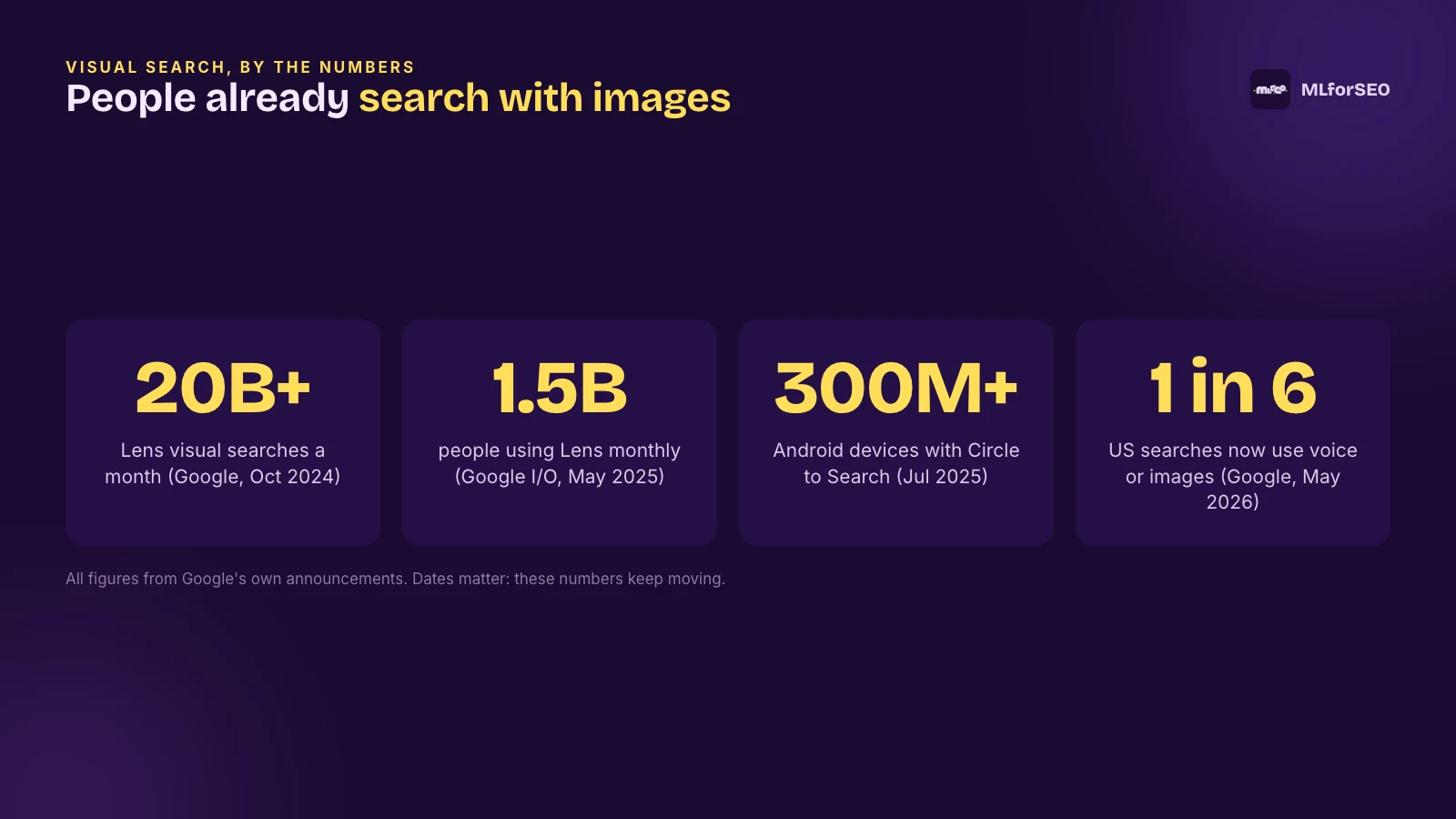
Sources for the figures: “nearly 20 billion visual searches every month” (Google, October 2024, then “over 20 billion” in the Q3 2024 earnings remarks); more than 1.5 billion people using Lens monthly (Google I/O 2025); Circle to Search on more than 300 million devices (Google, July 2025); and “more than one in six searches in the U.S. now use voice or images” (Google, May 2026).
Google Lens
Lens lets people search with their camera or any image: identify a plant, translate a menu, solve a maths problem, find where to buy a jacket. In October 2024 Google said 20% of Lens searches are shopping-related, that younger users (18 to 24) engage with Lens the most, and that Lens queries are one of the fastest-growing query types on Search. At I/O 2025, Sundar Pichai said Lens grew 65% year over year (TechCrunch).
How does it work? Google’s Search engineering director Dounia Berrada explained it with a neat analogy in March 2026: the AI model is the “brain” that sees the image, and the visual search backend is the “library” it looks things up in (Google blog). For products, that library includes the Shopping Graph, which Google now describes as having more than 60 billion continually refreshed product listings (Google, October 2026). Since October 2024, Lens can also take a video and a spoken question, and answer with an AI Overview.
Circle to Search
Circle to Search launched in January 2024 on Pixel 8 and Galaxy S24 phones: long-press the home button, circle anything on screen, and search it. It reached more than 150 million devices by October 2024, 250 million by April 2025 and 300 million by July 2025, according to Alphabet’s earnings remarks and Google’s blog. Google has said people who have tried it use it to start more than 10% of their searches (Q4 2024 earnings).
The features keep stacking up. Since July 2025 you can ask follow-up questions in AI Mode straight from Circle to Search. In February 2026 Google added the ability to circle several objects at once (break down a whole outfit, say), powered by Gemini 3, which plans which parts of the image to crop and runs several searches in parallel (Google blog). For SEOs, that’s the key detail: every object in a picture is a potential query.
Multimodal queries in AI Mode
AI Mode is where Lens, Gemini and Search come together. The milestones:
- April 2025: AI Mode gained multimodal understanding by combining Lens with a custom version of Gemini. Google said it can understand “the entire scene in an image”, including how objects relate to one another, and uses query fan-out to issue multiple queries about the image as a whole and the objects within it (Google blog).
- May 2025: AI Mode rolled out to everyone in the US, and Google announced Search Live, which lets you talk with Search about what your camera sees in real time.
- September 2025: visual search in AI Mode, with a “visual search fan-out” technique that recognises “subtle details and secondary objects in addition to primary subjects” (Google blog).
- October 2025: AI Mode expanded to more than 200 countries and territories. In March 2026, Search Live followed globally.
- May to July 2026: at I/O 2026, Google said the Search box accepts text, images, files, videos and Chrome tabs, and that AI Mode had passed 1 billion monthly users. By July, Google described AI Overviews and AI Mode as “one seamless Search experience” (Q2 2026 earnings).
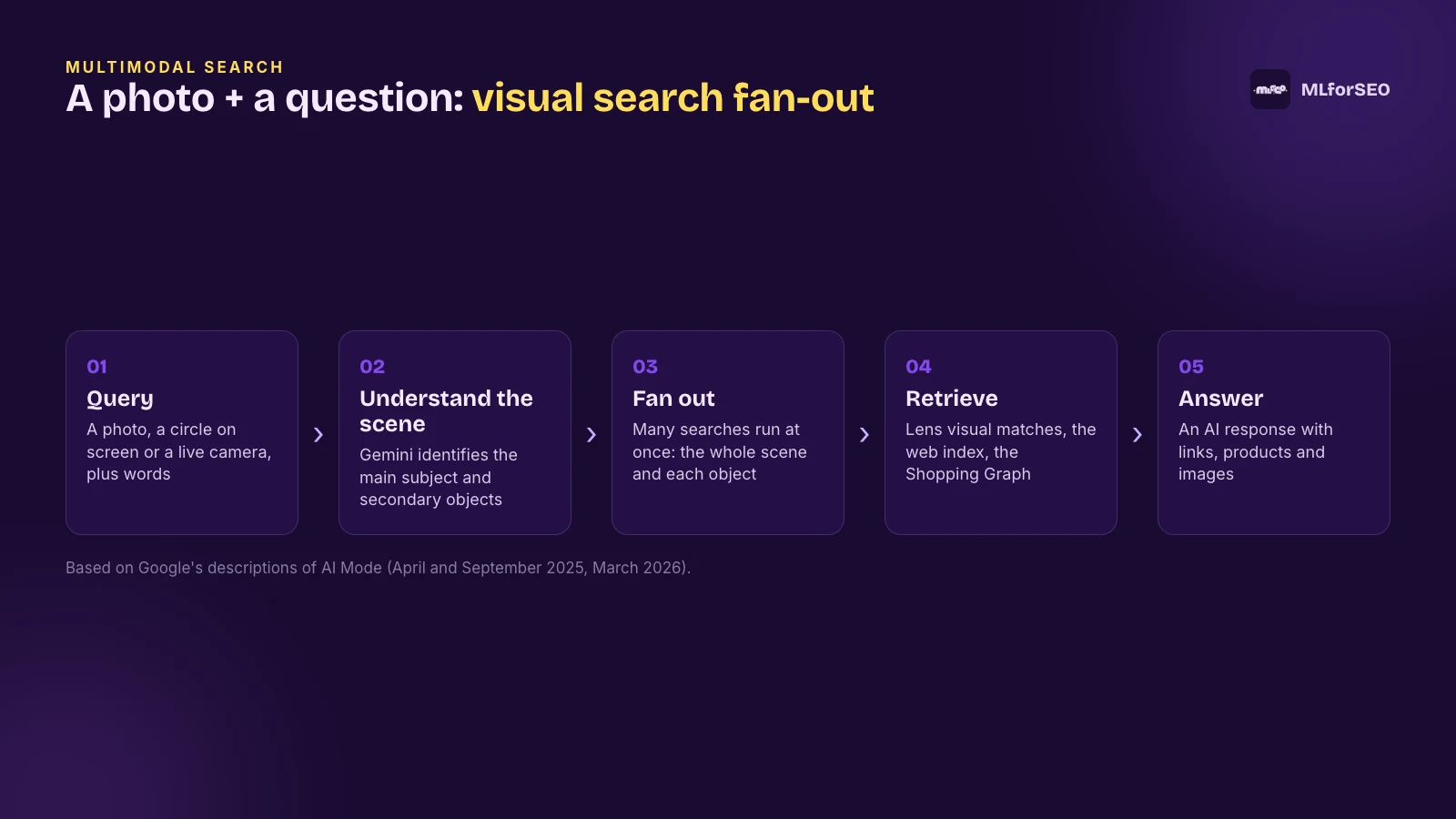
What does fan-out mean for you? A single photo can trigger a dozen searches: one for the whole scene and one for each recognisable object. Your page can be retrieved for any of them. That’s why the advice in Part 1 (clear, specific images; accurate alt text and captions; the right structured data) now affects visibility well beyond Google Images. Beatrice Gamba’s piece on how entities power query fan-out is a good companion read.
How vision-language models read images
Let me explain what’s going on inside the models, because it changes how you think about optimisation. Most image-understanding models today are built from the same few ideas:
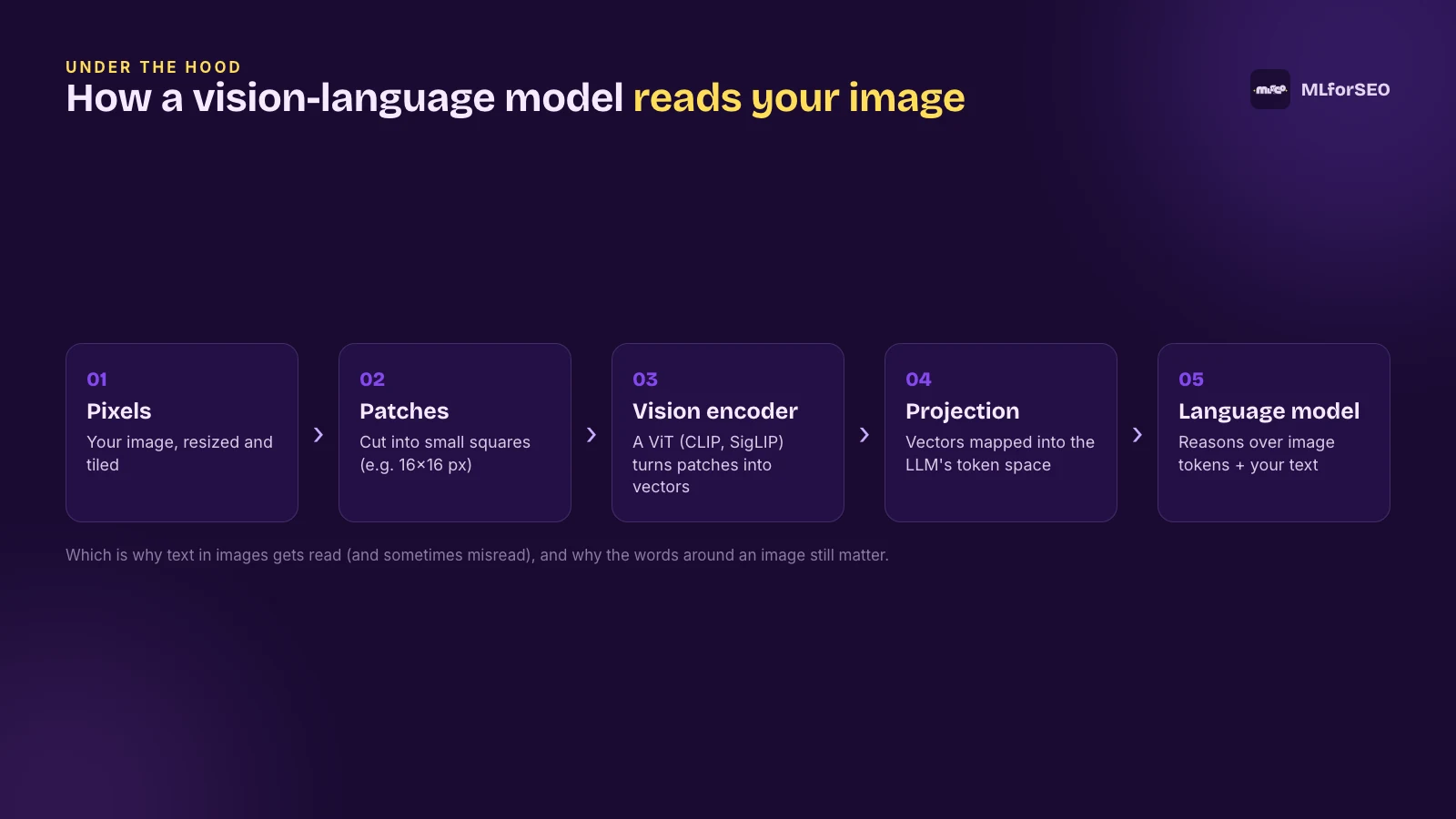
- Patches. The Vision Transformer (ViT) showed that you can cut an image into small squares (16×16 pixels in the original paper) and feed them to a transformer as if they were words in a sentence (Dosovitskiy et al., 2020).
- Contrastive learning. CLIP (OpenAI, 2021) trained an image encoder and a text encoder together on 400 million image-text pairs from the web, with one simple objective: predict which caption goes with which image (Radford et al., 2021). The result is a shared space where an image and a sentence describing it sit close together. Google’s SigLIP and SigLIP 2 refined the recipe (Tschannen et al., 2025).
- Connecting vision to a language model. Models like LLaVA showed you can take a vision encoder, project its output into the language model’s token space and let the LLM reason over image “tokens” alongside your text (Liu et al., 2023). Gemini, GPT and Claude work on broadly similar principles, although their exact architectures aren’t public.
Three implications for SEO:
- Text in images gets read, and sometimes misread. Vision-language models do OCR as a side effect. That’s great for infographics, but small, low-contrast or stylised text can be misread, and OpenAI’s own documentation lists non-Latin text, precise spatial reasoning and rotated images among its vision limitations (OpenAI docs). Put the important numbers and claims in HTML text as well.
- Images are tokens, and tokens cost money. Gemini counts an image up to 384×384 pixels as 258 tokens and tiles bigger ones into 768×768 tiles of 258 tokens each (Gemini API docs). OpenAI resizes and tiles images and offers a cheaper low-detail mode. Systems that process billions of images at scale make trade-offs, so a clear, uncluttered image with one obvious subject is easier to understand than a busy collage.
- The words around the image still anchor its meaning. A model can tell that a photo shows a black Labrador. It can’t know that it’s Buccleuch Avon, the dog from 1885 that the breed traces back to, unless your page says so. Context is what turns recognition into understanding.
Image embeddings: how images get matched to queries
An embedding is a list of numbers that represents the meaning of something, so that similar things end up close together. (If the term is new, our glossary entry on embeddings is a good start.) Multimodal embedding models put images and text in the same space, which is what makes it possible to search images with words, or find pages that match a photo.
Google offers this to developers: Vertex AI’s multimodal embedding model places image, text and video vectors in the same semantic space, and in March 2026 Google launched Gemini Embedding 2, described as its “first fully multimodal embedding model”, which maps text, images, video, audio and PDFs into a single embedding space across more than 100 languages (Google blog). Google hasn’t said exactly how Search uses embeddings internally, but the principle is the same one you’ll use in Part 4 with CLIP: if your image and your text describe the same thing clearly, they land in the same neighbourhood.
How images surface in AI Overviews and AI Mode
This is the question I get most, so let me be honest about what we know and what we don’t.
What Google says: its guidance on AI features and your website says there are no special technical requirements for appearing in AI Overviews or AI Mode, recommends supporting your textual content with high-quality images and videos, and confirms that traffic from AI features is counted in Search Console under the Web search type. The preferred image signals (primaryImageOfPage, the main entity’s image, og:image) are the documented way to influence which image represents your page in Search. And with Gemini 3, AI Mode builds generative layouts that can include images, tables and grids (Google, November 2025).
What research shows: not much yet. An Advanced Web Ranking study from July 2024 found that about 34% of AI Overviews contained lists with images rather than plain bullets (AWR). I couldn’t find credible research on how often AI Mode or ChatGPT answers include images, or where those images come from. If you see confident claims about this, ask for the methodology.
What I’d do: make sure each important page has one clear, high-resolution, representative image, declared consistently as the preferred image; make sure that image is crawlable and fast; and make sure the text on the page explains what the image shows. That covers every lever we know about.
ChatGPT and Gemini image understanding
Outside Google, people increasingly upload images straight into AI assistants: a screenshot of an error, a photo of a product, a chart from a report. Both ChatGPT and Gemini accept images and can describe them, read text in them and answer questions about them. Gemini’s API can return bounding boxes and segmentation masks for objects in an image, and accepts PNG, JPEG, WebP, HEIC and HEIF. OpenAI’s API accepts PNG, JPEG, WebP and non-animated GIF.
For shopping, ChatGPT has shown product results with images, prices and reviews since April 2025, and its help pages say it may simplify product titles and add labels to images. Products come in through merchant feeds (and Shopify’s catalogue). If you sell products, the image you put in your feeds is the image AI assistants will show, so treat feed images with the same care as your website images.
How to optimise for visual search
Pulling all of this together, here’s my checklist for visual and multimodal search:
- Make the subject obvious. One clear subject, well lit, in focus. Busy collages are harder to match.
- Show products from several angles, plus at least one in context (worn, in use, in a room). Visual search queries come from the real world, not from a white studio background.
- Be consistent across surfaces. The same main product image on your product page, in your Product structured data, in Merchant Center and in your
og:image. - Use Product structured data and a Merchant Center feed if you sell things, so Lens and AI Mode can connect a photo to your listing in the Shopping Graph.
- Put text that matters in HTML, even if it’s also in the image.
- Prefer original images for anything that carries meaning.
- Keep provenance and licence metadata intact.
- For local businesses, add real photos of your premises and products to your Google Business Profile. People do point their cameras at shopfronts and dishes.
- Measure it with the new Multimodal search type in Search Console.
Go deeper on AI search
Images are one input to AI search. The AI Search Optimisation & Agentic SEO course by Beatrice Gamba shows how agentic systems retrieve, evaluate and select sources, and how to become the source they cite.
Part 4: Machine learning for image SEO at scale
Everything above is manageable for a 20-page site. For a site with 50,000 product images, you need automation. Here’s the workflow I use, with a human firmly in the loop:
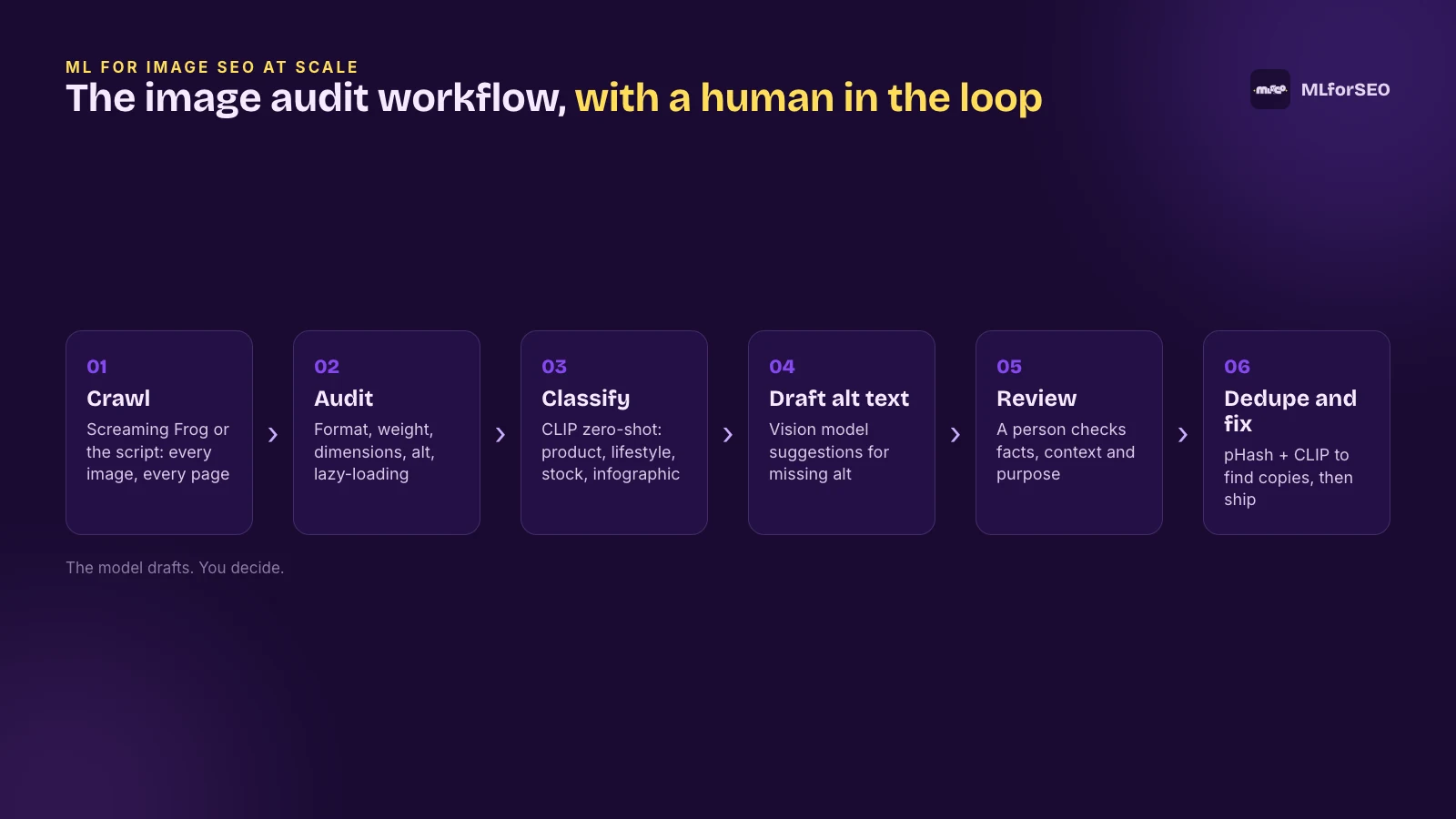
Audit your images with Screaming Frog
The Images tab in Screaming Frog’s SEO Spider is where I start every image audit. Its filters cover most of Part 1:
- Over 100 KB (the threshold is configurable).
- Missing Alt Text (the alt attribute is there but empty) and Missing Alt Attribute (no alt attribute at all). Remember that an empty alt is correct for decorative images, so review rather than bulk-fill.
- Alt Text Over 100 Characters (configurable).
- Background Images (only with JavaScript rendering enabled).
- Missing Size Attributes and Incorrectly Sized Images.
To get everything into a spreadsheet, use Bulk Export > Images > All Images (every image with its source page and alt text) or Images Missing Alt Attribute & Text (Screaming Frog guide). Connect the PageSpeed Insights API too: since version 23 (October 2025), its image opportunities are grouped into a single “Improve Image Delivery” audit, matching Lighthouse 13.
The AI features are where it gets interesting. Version 20 (May 2024) added custom JavaScript snippets, including one that generates alt text with OpenAI. Version 21 (November 2024) added direct integrations with OpenAI, Gemini and Ollama, so you can run prompts, including alt text generation, on every image during the crawl and see the results in an AI tab (Screaming Frog). I covered the crawling and extraction side in my guide to web scraping with Screaming Frog.
The MLforSEO image audit script
If you’d rather work in Python, or you want to add classification and de-duplication, use the script and Colab notebook in the MLforSEO code hub. Give it a list of page URLs and it will:
- find every
<img>(including common lazy-loading patterns andsrcset),<picture>source, inline CSS background image andog:image; - download each image once and check its real format (from the bytes, not the file extension), weight, pixel size, alt text, file name, width and height attributes,
srcset, lazy-loading on the first image, and whether the server negotiates AVIF or WebP; - optionally draft alt text for images with no alt attribute, with an open vision model running locally or the OpenAI or Gemini API (keys come from environment variables or Colab secrets, never from the code);
- optionally classify every image with CLIP and find near-duplicates.
pip install -r requirements.txt

# audit only
python image_seo_audit.py --urls urls.txt --out results

# + alt-text drafts, CLIP classification and near-duplicates
python image_seo_audit.py --urls urls.txt --out results --suggest-alt --classify --dedupe

# use an API for alt-text drafts instead of the local model
export GEMINI_API_KEY=...
python image_seo_audit.py --urls urls.txt --suggest-alt --alt-backend gemini
You get three CSVs: images.csv (one row per image, with an issues column), pages.csv (a summary per page) and duplicates.csv. On my test run it flagged, among other things, a page whose first image was lazy-loaded (worth checking whether it is the LCP element), eight images on one page with no alt attribute, missing width and height attributes on 14 images, and a generic Untitled-design file being used as a page’s og:image.
Automated alt text with vision models, and its caveats
Can a model write your alt text? It can write a draft. Here is the core of how the script does it with an open model from Hugging Face:
from transformers import AutoProcessor, AutoModelForImageTextToText

model_id = "HuggingFaceTB/SmolVLM-500M-Instruct"   # Apache 2.0, runs on a laptop CPU
processor = AutoProcessor.from_pretrained(model_id)
model = AutoModelForImageTextToText.from_pretrained(model_id).eval()

messages = [{"role": "user", "content": [
    {"type": "image", "image": img},   # a PIL image
    {"type": "text", "text": "Describe this image in one short, specific sentence for alt text."}]}]
inputs = processor.apply_chat_template(messages, add_generation_prompt=True, tokenize=True,
                                       return_dict=True, return_tensors="pt")
out = model.generate(**inputs, max_new_tokens=60, do_sample=False)
alt = processor.batch_decode(out[:, inputs["input_ids"].shape[1]:], skip_special_tokens=True)[0]
I tested two small open models on seven images (five Wikipedia dog photos and two of Google’s own documentation diagrams) on a laptop CPU in October 2026. Here are some of the results, next to the human-written alt text where one existed:
| Image | Human alt text | SmolVLM-500M (5-10 s/image) | Qwen3-VL-2B (11 s/image) |
|---|---|---|---|
| Three Labradors | three Labrador retrievers: Yellow, black, and chocolate | Three dogs are sitting on the grass. | Three dogs, including a yellow Labrador Retriever and two black Labradors, are sitting on a grassy lawn. (One is chocolate.) |
| Chocolate Lab puppy | (none) | A dark brown puppy is lying on an orange blanket. | A chocolate Labrador puppy with striking blue eyes rests on a bright orange blanket. |
| Endal, a service dog | (none) | A yellow Labrador Retriever wearing a blue vest with the words “SERVICE” and “TURF” on it. (Invented text.) | A light-colored Labrador Retriever wearing a purple harness with a gold medal, looking directly at the camera. |
| Buccleuch Avon, 1885 | (none) | A black dog is sitting on the ground and looking at the camera. | A black and white photograph of a large, dark-colored dog lying down on the ground, with a collar around its neck. |
| Google diagram: structured data in image results | An illustration that shows how rich results can appear in Google Images | A collage of three mobile phones displaying different food-related icons. | Three smartphones display different app interfaces with colorful icons representing various categories such as food, city, and lifestyle. |
In a second run, SmolVLM described a chocolate Labrador as a “Whiskey Stout dog”, a breed that does not exist. And when I gave it the page title as context, it simply repeated the title back (“Golden Retriever – Wikipedia”) for three different photos. The full outputs are in the code hub.
So, the caveats, in order of importance:
- Models hallucinate, and the errors are hard to spot without seeing the image. That’s exactly the problem for the people alt text is for. Research with blind and low-vision users found that AI descriptions contain errors that are hard to detect without sight (Chen, Iyer and Pavel, ASSETS 2025), and in a 2025 study, the best model was 98% accurate on clean product photos but 75% accurate overall once image-quality problems were included (Garg et al., 2025).
- Models describe; they don’t know why the image is there. Neither model understood that Google’s diagram was about rich results. As WebAIM puts it, “algorithms alone cannot understand what an image means within the context of the overall page” (WebAIM). Context helps larger models: GPT-4V descriptions that used the surrounding page were rated significantly higher by blind and low-vision users (Mohanbabu and Pavel, ASSETS 2024). Small models, as my test shows, can get worse.
- Facts the model can’t know (names, products, places, dates, what a chart means) always need a human.
- Decorative images should have an empty alt, which models never suggest on their own.
Where automation does work well: large product catalogues where you can combine a vision model’s description with structured product data you already trust (name, colour, material), and a human reviews a sample. I’m not saying “don’t use AI for alt text”. What I am saying is: let it draft, have a person approve, and never bulk-publish model output to fill a “missing alt” metric.
Image classification with CLIP embeddings
CLIP’s shared image-text space makes zero-shot classification possible: you write your categories as captions, and CLIP tells you which caption each image is closest to. No training data needed. That’s a fast way to see your image mix across thousands of pages: how many product shots on white versus lifestyle photos, how many stock photos of smiling people in offices, how many screenshots, how many infographics.
from transformers import CLIPModel, CLIPProcessor

labels = ["a product photo on a plain white background",
          "a lifestyle photo of a product in use",
          "a stock photo of smiling people in an office",
          "an infographic or chart with text",
          "a screenshot of software or a website",
          "a logo or icon"]

model = CLIPModel.from_pretrained("openai/clip-vit-base-patch32").eval()
processor = CLIPProcessor.from_pretrained("openai/clip-vit-base-patch32")
out = model(**processor(text=labels, images=batch_of_images, return_tensors="pt", padding=True))
probs = out.logits_per_image.softmax(dim=-1)   # one row per image, one column per label
In my test, CLIP labelled every clear case correctly (logos, headshots, animal photos, and Google’s diagrams as “an infographic or chart with text”), and was least confident on a mixed diagram, which it called a screenshot with a score of 0.38. I treat anything under about 0.5 as “look at this one”. You can pass your own labels with --labels. For a different angle on organising images with ML, see our resource on image clustering by colour with three machine learning approaches.
Finding near-duplicate images with CLIP and perceptual hashing
Duplicate images waste crawl budget and bandwidth, and they break the “one consistent URL per image” rule. The script compares every pair of images in two ways:
- Perceptual hash (pHash): a compact fingerprint of what the image looks like. A small Hamming distance between two hashes means it’s the same picture, resized or re-encoded. Cheap and precise.
- CLIP cosine similarity: how close the two images are in meaning. This catches near-identical images that aren’t pixel copies: the same scene from a slightly different angle, or two graphics built on the same template.
import torch, imagehash

emb = model.get_image_features(**processor(images=images, return_tensors="pt"))
emb = torch.nn.functional.normalize(emb, dim=-1)
sims = emb @ emb.T                                   # cosine similarity matrix

for i in range(len(images)):
    for j in range(i + 1, len(images)):
        same_pixels = imagehash.phash(images[i]) - imagehash.phash(images[j]) <= 8
        if same_pixels or sims[i, j] >= 0.95:
            print(urls[i], urls[j], float(sims[i, j]))
Calibrate your thresholds on your own images. In my test, two different photos of Labradors scored about 0.92, the same photo at 250 and 1280 pixels scored about 0.95, and two different Google diagrams built on the same template scored 0.97. A CLIP threshold alone would either miss the resized copy or flag the different dogs. The perceptual hash caught the resized copy instantly (a distance of 0). The sentence-transformers documentation has a nice image de-duplication example if you want to go further, and newer models like SigLIP 2 are a drop-in upgrade for CLIP.
If machine learning workflows like these are new to you, the Introduction to Machine Learning for SEO course walks through classification, clustering and embeddings for SEOs from scratch.
The complete image SEO checklist for 2026
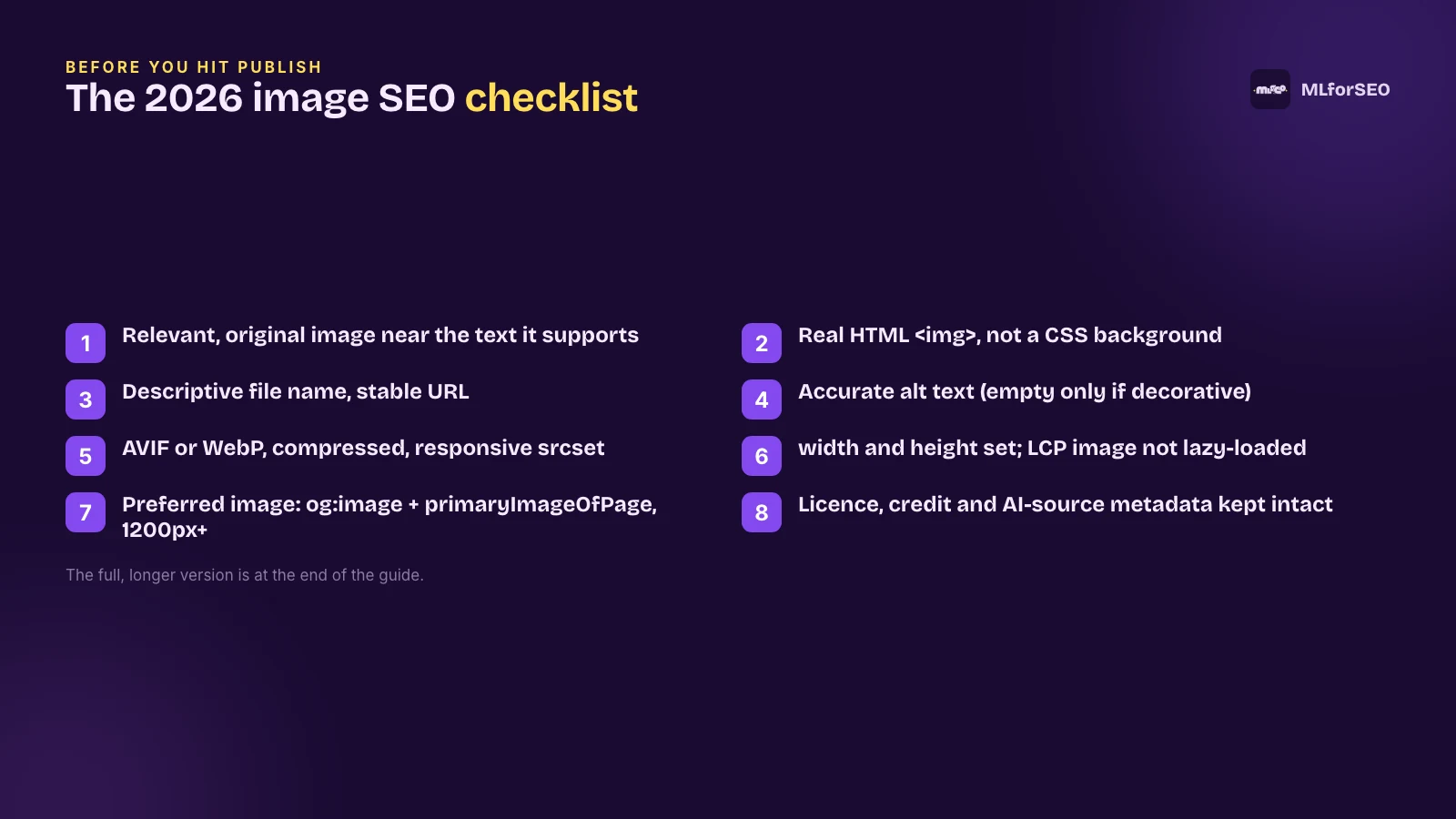
Here’s the full version to save and come back to:
- Use relevant, original images that add value, placed near the text they illustrate.
- Use
<img>(or<picture>with an<img>fallback), not CSS backgrounds, for meaningful images. - Give files short, descriptive, dash-separated names, and reference each image with one consistent URL.
- Write accurate, specific alt text; use
alt=""for decorative images; no keyword stuffing. - Add captions with
<figure>and<figcaption>where they help readers. - Serve AVIF or WebP with a fallback; use SVG for logos and icons; replace animated GIFs with video.
- Compress every image and keep page image weight in check.
- Use
srcsetand accuratesizesfor responsive images. - Set
widthandheighton every image. - Lazy-load offscreen images natively; never lazy-load the LCP image; give it
fetchpriority="high". - List important images in an image sitemap (
<image:loc>only). - Add an
imageto every Product, Article, Recipe and Video in your structured data. - Declare a preferred image (
primaryImageOfPage, the main entity’s image andog:image), 1200 px or wider, not a logo. - Add licence and credit metadata (structured data and/or IPTC) to original images.
- Label AI-generated images (IPTC digital source type, C2PA) and keep that metadata intact.
- Set
og:image,og:image:altandtwitter:card=summary_large_image. - Allow large previews with
max-image-preview:large. - Serve images through an image CDN with stable URLs and format negotiation.
- Monitor the Image and Multimodal search types in Search Console.
- Audit regularly with Screaming Frog or the MLforSEO script, and review any AI-drafted alt text before publishing.
What to look out for next…
Image SEO is definitely worth paying attention to. I argued in 2021 that it would become even more important in the years to come, and multimodal search has made that an understatement.
Three things I’m watching. First, the Multimodal search type in Search Console: as data builds up, we’ll finally be able to see which pages and images visual search sends traffic to. Second, provenance: with SynthID and C2PA checks coming to Search, content credentials could go from a nice-to-have to something users actively look for. Third, how AI Mode chooses the images it shows, which is still largely undocumented. I’ll update this guide as Google shares more.
In the meantime, grab the image audit script, run it on your ten most important pages, and fix what it finds. You might feel overwhelmed by all these tips, but feel free to save this guide and come back to it whenever you need it.
Thanks for reading. For more information and inspiration, check out these resources:
- Google’s documentation: Image SEO best practices, image sitemaps, image licence metadata and Google Discover
- web.dev, recommended by Google: choose the right image format, choose the correct level of compression, replace animated GIFs with video, serve responsive images, serve images with correct dimensions and use image CDNs to optimise images
- Accessibility: the W3C alt decision tree and WebAIM’s alternative text guide
- The state of images on the web: HTTP Archive Web Almanac 2024, Media chapter
- More from MLforSEO: the resources library, including free notebooks and templates
Frequently asked questions
What is image SEO?
Image SEO is the practice of making your images easy for search engines and AI systems to find, understand and show, and fast for users to load. It covers file names, alt text, captions, formats, compression, responsive images, lazy-loading, image sitemaps, structured data and metadata, and, increasingly, how images perform in visual and multimodal search such as Google Lens and AI Mode.
Does alt text help SEO?
Yes, mainly for Google Images. Google uses alt text along with computer vision and the page content to understand an image. For regular web search, Google has said alt text is treated like other text on the page. Alt text is also essential for accessibility, so write it for people first and avoid keyword stuffing.
What is the best image format for SEO in 2026?
AVIF or WebP for photos and most graphics, with a JPEG or PNG fallback via the picture element, SVG for logos and icons, and video instead of animated GIFs. Google Search supports BMP, GIF, JPEG, PNG, WebP, SVG and AVIF (AVIF since August 2024).
Should I lazy-load all images?
No. Lazy-load images below the fold with loading=”lazy”, but never lazy-load the image that is likely to be your Largest Contentful Paint element. Load that one eagerly and add fetchpriority=”high”. Also make sure lazy-loaded images load when they enter the viewport, because Googlebot does not scroll or click.
Are image sitemaps still useful?
Yes, especially for images loaded with JavaScript or hosted on a CDN. Since 2022, Google only supports the image:image and image:loc tags; caption, title, geo location and licence tags were deprecated. Put licensing information in structured data or IPTC metadata instead.
How do I tell Google which image to show for my page?
Google picks preview images automatically, but since March 2026 its documentation lists three ways to influence the choice: the schema.org primaryImageOfPage property, an image on the page’s main entity, and the og:image meta tag. Use a relevant, high-resolution image that is not a logo and has no extreme aspect ratio.
Do I need to label AI-generated images?
It’s good practice, and in some cases required. Google Merchant Center requires IPTC TrainedAlgorithmicMedia metadata on AI-generated product images. Google reads IPTC digital source type and C2PA content credentials and can show them in “About this image”. Keep that metadata intact and add a plain-language caption too.
What is multimodal search?
Multimodal search lets people search with more than text: an image, a video, their camera or their voice, often combined with a question. Google Lens, Circle to Search, Search Live and AI Mode are all multimodal. Search Console added a Multimodal search type in September 2026 to report this traffic.
Can AI write alt text for me?
It can write drafts, which is useful at scale, but vision models hallucinate details, miss what an image means in context and can’t know names, products or places. Use them to draft alt text for images that have none, have a person review every suggestion, and keep empty alt attributes for decorative images.
Related glossary terms
MLforSEO Academy
Take your skills further — pick your path
AI Search Optimisation & Agentic SEO
by Beatrice Gamba
How agentic systems retrieve, evaluate and select — and how to become the source they cite.
View course →AI Search, LLMs, Entity SEO & Knowledge Graph Strategies
by Beatrice Gamba
Build the entity authority and knowledge-graph presence that makes AI recognise and trust your brand.
View course →Semantic ML-enabled Keyword Research
by Lazarina Stoy
Query understanding, search intent and semantic clustering for how people and AI really search.
View course →Introduction to Machine Learning for SEO
by Lazarina Stoy
Ship practical ML workflows — classification, clustering, entity extraction — no CS degree required.
View course →