Export the content from a website in a spreadsheet or CSV, using a custom extraction, in under 5 minutes.
When solving real-life business problems with data science and NLP, there is always a need for creating a dataset on which you can run machine learning models.
Web scraping, in simple terms, is extracting data from the web, or more specifically, from websites.
Web scraping with Screaming Frog can not only be used by SEOs, but also by data scientists who want to skip the coding bit in order to get to their datasets quicker.
This tutorial will walk you through using the Screaming Frog SEO Spider’s custom extraction feature to scrape data from websites in the quickest and easiest way: through a CSS path (or, since 2023, by simply clicking on the bit of the page you want).
Updated October 2026: what changed since the first version
I first wrote this tutorial in 2021, on version 15 of the SEO Spider. I’ve re-checked every step against version 24.3 (the current release) and Screaming Frog’s own user guide. The short version:
- The three steps still work. The menu path is now Configuration > Custom > Custom Extraction, and the settings sit inside one unified configuration window.
- You can skip step 1 entirely with Visual Custom Extraction (added in version 19): open a page inside the SEO Spider, click the element, and it suggests the selector for you.
- The licence is now £199 a year (it was £149). Custom extraction is still a paid feature.
- What you can do with the scraped text has changed a lot. Since versions 21 and 22 you can send it to an AI model (OpenAI, Gemini, Anthropic or a local Ollama model) or turn pages into embeddings, without leaving the tool. More on that at the end.
I’ve also added a small companion notebook: it tests your selector before you crawl and turns the export into a clean, NLP-ready dataset. Grab it from the MLforSEO code hub.
Before you start: a couple of things (or limitations, if you wish)
- Custom extractions are not available in the free version of the tool (which is also capped at 500 URLs), so to have access to this feature you need to pay a yearly fee (£199.00 per licence at the time of writing).
- You can only extract text from pages that can be crawled by the SEO Spider, so they should return a 200 (OK) status code. The Custom Extraction tab only lists internal HTML pages with a 2xx response.
- If the content is loaded with JavaScript, switch to JavaScript rendering mode (Configuration > Spider > Rendering) to extract data from the rendered HTML.
- You can set up to 100 extractors in one crawl, so you can grab the content, the author, the publish date and the category in one go.
- This tutorial focuses on CSS paths. XPath and regex are thoroughly covered by Screaming Frog’s own guide to web scraping, which is worth bookmarking.
- Only scrape sites you have permission to scrape, and keep the crawl speed polite (Configuration > Speed). Your own site, your client’s site with their sign-off, or public pages where the terms allow it.
To get started, you’ll need to download & install the SEO Spider and add your licence key.
1. Copy the selector of the element you want to extract text from
First, you need to locate the element that contains the text on the page and copy the selector.
To do this, open the page in Chrome, right-click on the content and choose Inspect to open the developer tools and examine the HTML.
To identify the element, you can read the code, or if you are less familiar with HTML, you can also hover over different parts of the code in order to see which part of the page each one corresponds to.
Once hovered over, the matching part of the page lights up in blue.
Right-click the element in the Elements panel and select Copy > Copy selector.
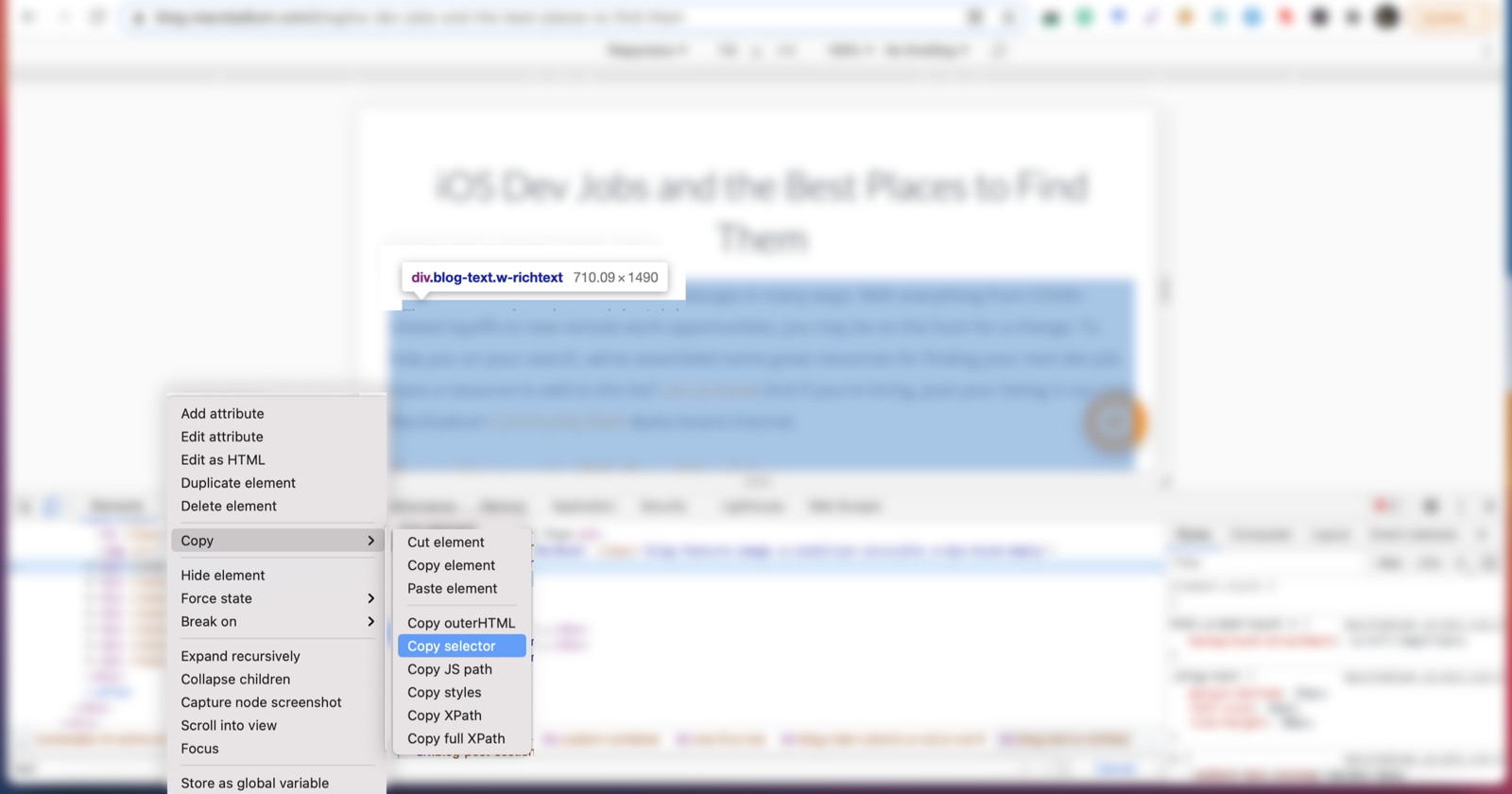
A 2026 tip on selectors: Chrome’s Copy selector often gives you a long, position-based path such as body > div:nth-child(3) > div > div.blog-text. It works on that one page but can break on pages with a slightly different template. Where you can, shorten it to a class that wraps the content on every article, such as .entry-content, article or .blog-text. Screaming Frog’s own guide gives the same warning about copied selectors. The companion notebook lets you test a selector on a few URLs before you commit to a full crawl.
Now, let’s head over to Screaming Frog.
2. Set up a custom extraction in Screaming Frog
Open Screaming Frog.
Click on the Configuration menu and select Custom > Custom Extraction. Then click Add to create a new extractor.
In terms of configuration, you first need to name the extraction. Bear in mind this name will be the name of the column where the data gets extracted later on.
In my example, I’ve named it ‘Content’.
Then, select CSSPath from the dropdown and paste the selector you copied in step 1. A green tick next to the field means the syntax is valid; a red cross means something is off. Finally, select the Extract Text option.
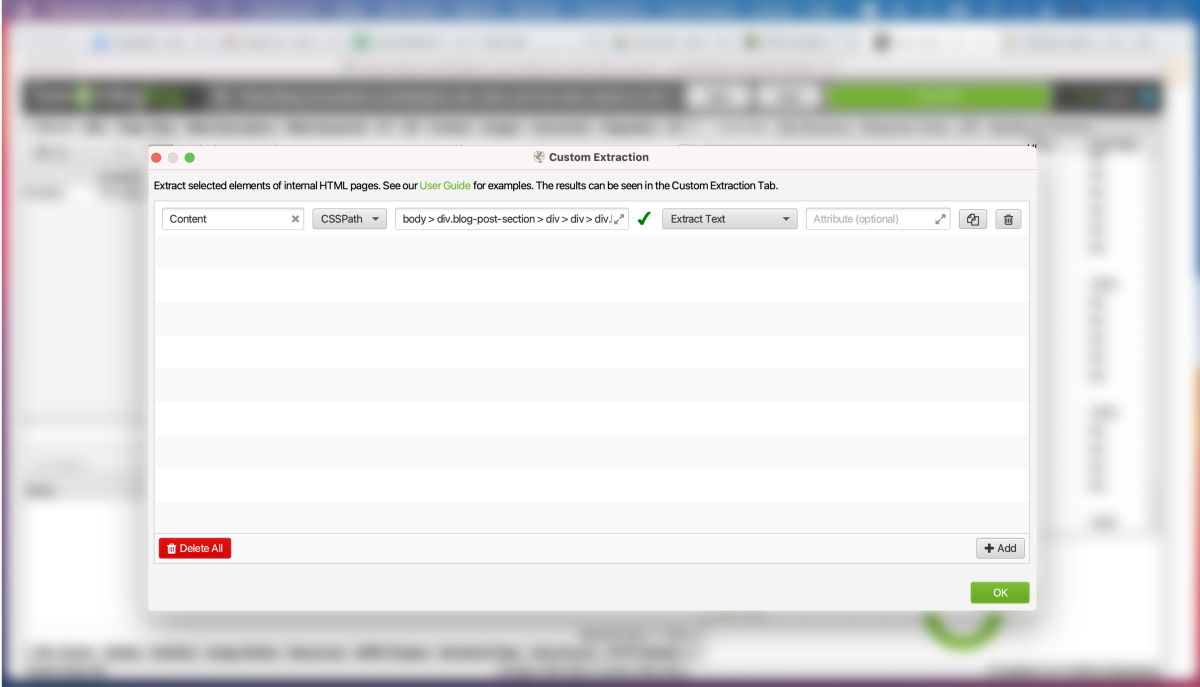
The other options in that last dropdown are worth knowing about:
- Extract Text: the text content of the element. This is what you want for NLP datasets.
- Extract Inner HTML: the HTML inside the element, if you want to keep headings, links or lists.
- Extract HTML Element: the element itself plus everything inside it.
- Function Value: the result of an XPath function, for example
count(//h2)to count the subheadings on each page.
Click on OK to close the configuration.
The no-code-at-all option: Visual Custom Extraction
If you’d rather not touch the HTML at all, there’s a shortcut that didn’t exist when I wrote the first version of this guide. Next to the expression field there’s a small browser icon. Click it and the Visual Custom Extraction window opens:
- Type the URL of a page you want to scrape into the address bar at the top and let it load.
- Click on the element you want to extract, for example the article body. The SEO Spider highlights it and shows a list of Suggestions: different XPath and CSS expressions that match it.
- Pick a suggestion and check the preview. You can switch between the Rendered HTML and Source HTML views to see whether the content is there without JavaScript.
- Set the Data dropdown to Extract Text, give it a Name, and click OK (or Add Extractor to set up another one).
Two small things that tripped me up: to follow a link inside the visual browser you need to hold down CTRL while clicking, and the preview is only as good as the page you test it on, so check it on a second page type before you crawl.
Run the crawl
Then, run the crawl. In the default Spider mode, paste the start URL into the bar at the top and click Start. If you only want specific pages (say, just the blog posts), switch to Mode > List and upload your URLs from a file, paste them, or pull them from an XML sitemap or a Google Sheet.
You don’t have to wait for the end to check your work: the extracted data appears in the Custom Extraction tab in real time, so look at the first few rows and stop the crawl if the column is empty.
3. Export your data
Once your crawl has finished, open the Custom Extraction tab to see only the data from the extraction set-up, and click Export. You can also export the entire crawl in one spreadsheet from the Internal tab.
Screaming Frog enables data exports in CSV and Excel files, or even directly to a Google Sheet (once you’ve connected a Google account). The possibilities really are endless.
One thing to expect: if your selector matches more than one element on a page, each match gets its own column (Content 1, Content 2 and so on). The companion notebook merges them back into one text field, strips the extra whitespace, drops thin pages and duplicates, and saves the result as CSV and JSONL, ready for whatever model you want to run next.
No selector at all? Try the All Page Text export
If you just want all the visible text of every page and don’t care about isolating the main content, there’s an even quicker route. Crawl the site, then use Bulk Export > Web > All Page Text. You get a separate .txt file for every internal HTML page with a 200 response. The catch: it includes the navigation, footer and cookie banner text on every page, which adds a lot of noise to text analysis. For NLP work, a custom extraction of the content area is still the cleaner option.
What you can do with the scraped content inside Screaming Frog now
When I wrote this guide, the export was the end of the job in Screaming Frog, and the analysis happened in Python. That’s no longer the whole story. Two newer features are worth knowing about, especially if you’re scraping content for NLP:
Run AI prompts against your extraction (version 21+)
Under Configuration > API Access > AI you can connect an API key for OpenAI, Gemini or Anthropic, or a local Ollama model, and set up prompts that run on every page during the crawl. One of the things a prompt can run on is your Custom Extraction, so you could scrape the article body and ask a model to summarise it, classify it or pull out the main entities. The answers appear in the AI tab, next to your extraction. Screaming Frog’s user guide covers the set-up.
I’m not saying you should push every page of a 50,000-URL site through an LLM. What I am saying is that for a few hundred pages and a well-defined task, it saves you a round trip to a notebook. Keep an eye on cost, on what data you’re sending to a third party, and remember that LLMs are great at being creative, not at being precise.
Embeddings, semantic similarity and content clusters (version 22+)
With an OpenAI, Gemini or Ollama connection you can also generate embeddings (numerical representations of what each page is about) under Configuration > Content > Embeddings. After crawl analysis, the Content tab gets two new filters, Semantically Similar and Low Relevance Content, there’s a Semantic Search over your crawl, and Visualisations > Content Cluster Diagram maps your pages into topic clusters. Screaming Frog’s semantic similarity tutorial walks through it.
This is the same idea I use in my internal link audit and topic clustering guide, where you’ll find a free notebook that does the clustering and link suggestions with open-source models instead.
Learn what to do with your dataset
A scraped dataset is only the start. The Introduction to Machine Learning for SEO course shows you how to turn it into classification, clustering and entity extraction workflows, without needing a computer science degree.
Final thoughts
As I mentioned, this tutorial is just scraping the surface (no pun intended) of what this tool can do, so I highly suggest checking out the XPath examples for web scraping provided by Screaming Frog’s content team.
This type of data is very easy to perform data analysis on, and this tool can be especially useful for NLP and data science professionals who specialise in text analytics. And as I mentioned before, it’s totally code-free.
Once you have your dataset, here are a few places to take it on MLforSEO:
- Find the main topics across your pages with topic modelling with LDA or BERTopic.
- Pull out people, brands and places with entity extraction.
- Fill in missing meta descriptions with Python, from BERT to LLMs (it starts with exactly this kind of custom extraction).
- Browse the free templates and notebooks in the MLforSEO resources library.
Frequently asked questions
Is Screaming Frog custom extraction free?
No. Custom extraction (along with custom search, custom JavaScript, JavaScript rendering and the AI integrations) is only available with a paid licence, which costs £199 per year at the time of writing. The free version crawls up to 500 URLs and doesn’t include it.
What’s the difference between CSSPath, XPath and Regex in Screaming Frog?
All three tell the SEO Spider which part of the page to extract. CSSPath uses CSS selectors (like .entry-content) and is usually the quickest to write. XPath is more powerful: it can select attributes, use functions such as count(), and navigate up and down the page structure. Regex matches patterns in the raw source code, which is useful for things that aren’t proper HTML elements, such as inline JavaScript or HTML comments.
Why is my custom extraction column empty?
The most common reasons: the selector only works on one page template (Chrome’s copied selectors are often position-based), the content is loaded with JavaScript (switch to JavaScript rendering under Configuration > Spider > Rendering), or the page didn’t return a 200 status code. Test the selector on a couple of different pages with Visual Custom Extraction, or with the companion notebook, before crawling the whole site.
How many extractors can I set up in one crawl?
Up to 100 extractors, with a limit of 1,000 extractions across all of them. Each extractor appears as its own column in the Custom Extraction tab and in the Internal tab.
Can Screaming Frog scrape content from JavaScript websites?
Yes. Switch the rendering mode to JavaScript under Configuration > Spider > Rendering and the custom extraction runs on the rendered HTML. Crawls are slower in this mode, so only use it when the content isn’t in the source HTML.
Related glossary terms
MLforSEO Academy
Take your skills further — pick your path
Introduction to Machine Learning for SEO
by Lazarina Stoy
Ship practical ML workflows — classification, clustering, entity extraction — no CS degree required.
View course →AI Search Optimisation & Agentic SEO
by Beatrice Gamba
How agentic systems retrieve, evaluate and select — and how to become the source they cite.
View course →AI Search, LLMs, Entity SEO & Knowledge Graph Strategies
by Beatrice Gamba
Build the entity authority and knowledge-graph presence that makes AI recognise and trust your brand.
View course →Semantic ML-enabled Keyword Research
by Lazarina Stoy
Query understanding, search intent and semantic clustering for how people and AI really search.
View course →