Almost every SERP-based workflow I teach starts with the same unglamorous step: getting the search results for a list of keywords into a table you can actually analyse. Clustering keywords by shared URLs, classifying intent from SERP features, mining People Also Ask, checking which pages an AI Overview cites. None of it works until you have the SERPs.
For a long time my answer to “where do I get that data?” was a scraper, a SaaS export or a lot of copy and paste. These days it’s usually the DataForSEO API. You pay per request, it returns every element on the results page as structured data, and a top-10 SERP costs a fraction of a cent. The catch, if you’ve never called an API before, is the first hour: authentication, two different task modes, a deeply nested response, and the nagging worry that a loop will drain your balance while you make a cup of tea.
So I built a beginner notebook that handles all of that for you, and this post walks through it. You’ll learn what Live and Standard mode mean and when each is worth it, what the response actually looks like, how to keep costs predictable, and three things to do with the tables straight away. Every output I quote below comes from the notebook’s sample run on three real Google SERPs.
Free notebook
DataForSEO SERP Collection Starter Notebook: a free Google Colab notebook that pulls Google SERPs for your keywords through the DataForSEO API and turns them into tidy tables for organic results, SERP features, People Also Ask, AI Overview citations and related searches.
On this page
What DataForSEO is, and why I use a SERP API
A SERP API runs the search for you and hands back the results as data. You send a keyword, a location, a language and a device, and you get back JSON describing everything on the page. The DataForSEO API is one of these services (another one you may have seen is SerpApi). Its SERP API v3 covers Google organic results, and the “advanced” endpoints return every element type on the page, not only the blue links.
If APIs are new to you: you send a structured request and get a structured answer back. With Python that’s a few lines of code.
Why not scrape Google yourself? In my experience you end up maintaining proxies and parsers that break whenever the layout changes. I’d rather pay a fraction of a cent per SERP and spend my time on the analysis. DataForSEO works on a prepaid balance with no monthly subscription, which suits occasional analysis well (check the pricing page for current terms).
Live vs Standard mode: which one to use
DataForSEO gives you two ways to request a Google SERP, and choosing between them is the first decision that confuses people.
| Live (advanced) | Standard (task_post + task_get) | |
|---|---|---|
| How it works | One request, one keyword, results in seconds | Post up to 100 keywords per request, collect the results a few minutes later |
| Endpoint | /v3/serp/google/organic/live/advanced | task_post then task_get/advanced |
| Price for a top-10 SERP (October 2026 list price) | $0.002 | $0.0006 at normal priority, $0.0012 at high priority |
| Best for | Testing, small lists, anything you need right now | Hundreds of keywords, weekly tracking, anything scheduled |
My rule of thumb: start in Live mode while you’re learning, because the feedback is instant. Once you’re running the same list every week, switch to Standard. It costs under a third as much, and collecting the results with task_get is free, so polling for them doesn’t add anything to the bill.
The notebook supports both through one setting, MODE. Under the hood it posts Standard tasks in batches of 100, then checks every 15 seconds until they’re ready.
What the advanced response looks like
Every element on the page comes back in a list called items, and each item has a type: organic, ai_overview, people_also_ask, video, related_searches and many more. Here’s the shape of the sample SERP for “what is entity seo” (US, English, desktop, pulled 24 October 2026), straight from the notebook:
| rank_absolute | type | domain |
|---|---|---|
| 1 | ai_overview | |
| 2 | organic | inlinks.com |
| 3 | people_also_ask | |
| 4 | organic | neilpatel.com |
| 5 | organic | searchengineland.com |
| 6 | organic | ahrefs.com |
| 7 | organic | www.schemaapp.com |
| 8 | organic | www.youtube.com |
| 9 | organic | www.clearscope.io |
| 10 | organic | www.found.co.uk |
| 11 | organic | www.seoforjournalism.com |
| 12 | related_searches |
rank_group vs rank_absolute
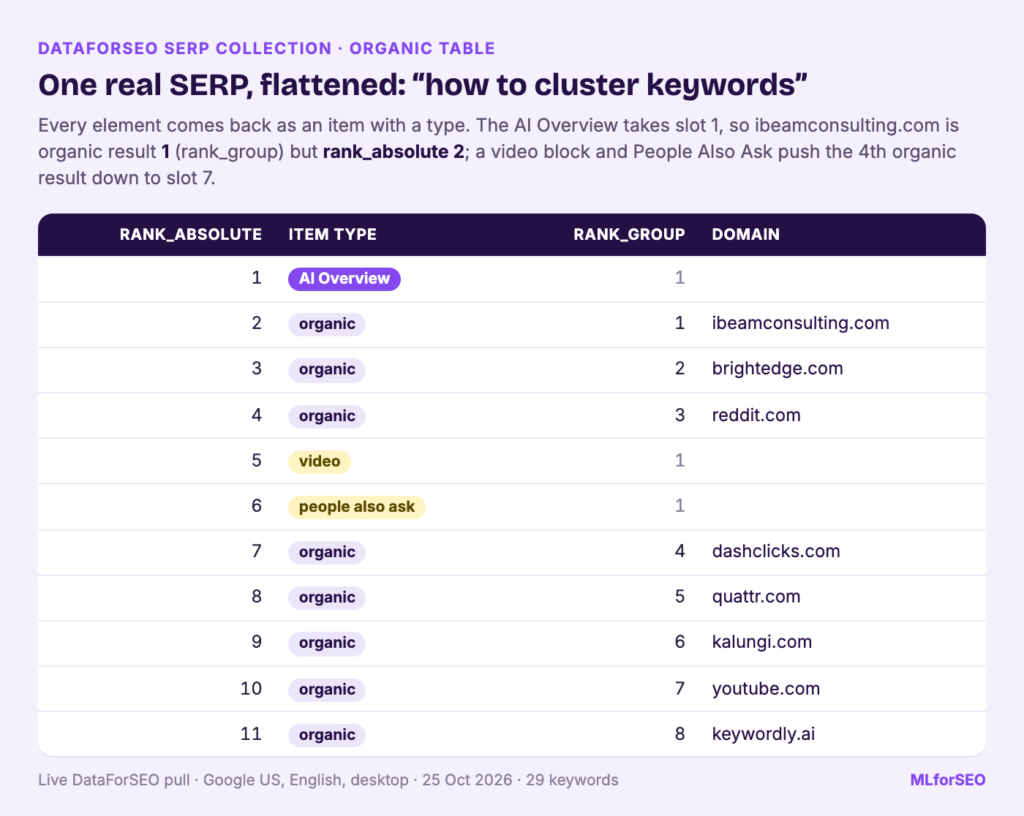
Two position fields trip everyone up. rank_group is the position among items of the same type, so among organic results only. rank_absolute counts every element on the page. In the table above, inlinks.com is organic result 1 (rank_group 1) but sits at rank_absolute 2, because the AI Overview takes the first slot. neilpatel.com is organic result 2, yet rank_absolute 4, because the People Also Ask box sits between them.
Which one should you use? For classic “where do I rank” questions, rank_group. For “how far down the page is my result”, rank_absolute is the more honest number, because a first organic result under an AI Overview and a People Also Ask box is a long way from the top of the screen.
Where the AI Overview citations live
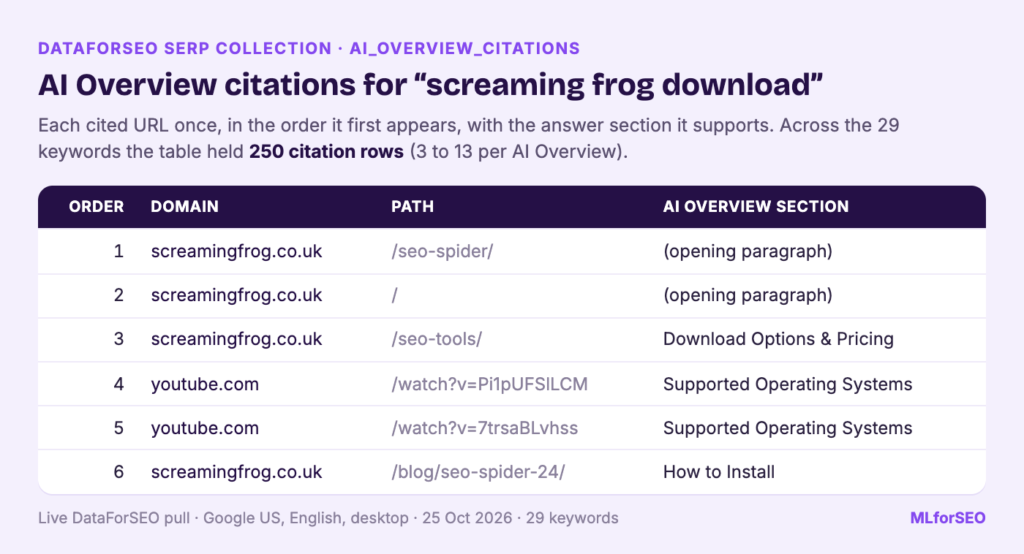
An AI Overview arrives as an item of type ai_overview. Its answer is split into ai_overview_element paragraphs, and each paragraph carries a references list with the source domain, URL and title. The ai_overview item has its own references as well, which correspond to the source panel beside the answer. The notebook reads both and keeps each URL once, in the order it first appears, so you get a clean list of AI citations per keyword.
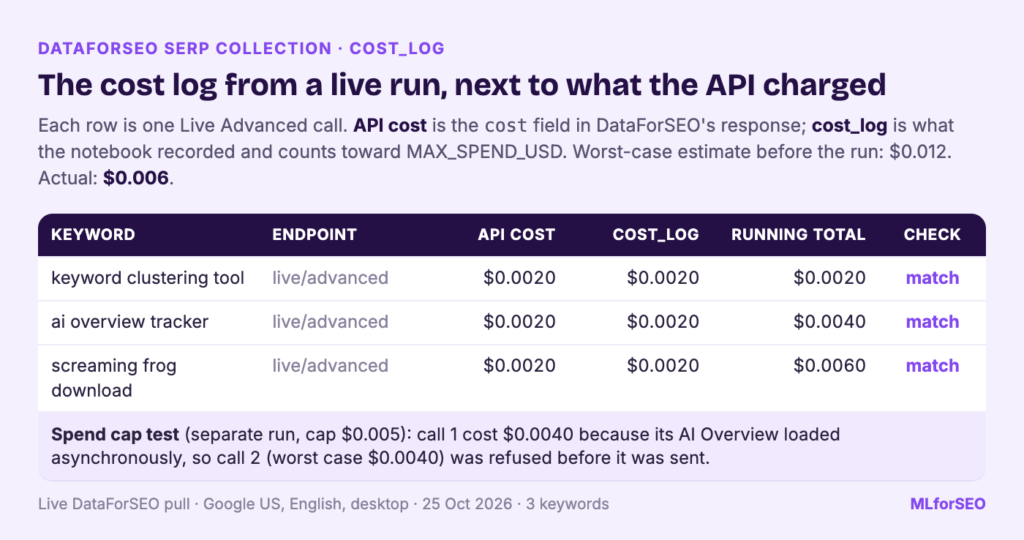
One setting matters a lot here: load_async_ai_overview. Many AI Overviews load after the rest of the page, and without this flag DataForSEO only returns the ones that were already rendered, so you’d undercount them. It adds up to $0.002 per Live call, and DataForSEO refunds the surcharge when there’s no asynchronous AI Overview to load. In the sample run all three AI Overviews were already on the page (the response marks them asynchronous_ai_overview: false), so each of those calls was charged only $0.002 and the surcharge was refunded. That won’t hold for every keyword list: on a real run of 29 keywords on 25 October 2026, 10 of them (34%) were charged the full $0.004 rate, and the run averaged about $0.26 per 100 keywords with asynchronous AI Overviews switched on.
Walking through the notebook
The notebook runs in Google Colab, so there’s nothing to install on your machine. Here’s what each step does.
1. Run it in sample mode first
Leave USE_SAMPLE = True and run every cell. It replays three real Live Advanced responses saved in the notebook’s folder (“what is entity seo”, “best running shoes” and “screaming frog download”), so you can see every table before you spend a cent. The saved responses are trimmed to keep the files small, but the structure is exactly what the API returns.
2. Choose your settings
USE_SAMPLE = True            # False = call the real API with your credentials
MODE = "live"                # "live" or "standard"
LOCATION_CODE = 2840         # United States (2826 = United Kingdom)
LANGUAGE_CODE = "en"
DEVICE = "desktop"           # or "mobile"
DEPTH = 10                   # results per SERP (billed per page of 10)
LOAD_ASYNC_AI_OVERVIEW = True
PAA_CLICKS = 0               # 0-4
MAX_SPEND_USD = 0.10         # hard stop for the whole run
Location codes come from DataForSEO’s locations list. Keep DEPTH at 10 unless you really need page two, because you’re billed per page of 10 results. PAA_CLICKS expands People Also Ask for more questions at $0.00015 per click.
3. Clean the keyword list
Paste your keywords or point the notebook at a CSV with a keyword column. It trims, lower-cases and removes duplicates, so you never pay twice for the same SERP. The sample file has a deliberate duplicate (“Best Running Shoes ” with a trailing space) to show this working:
4 keywords in, 3 after removing duplicates and blanks4. Check the cost estimate
Before anything is spent, the notebook works out a worst-case figure that assumes every keyword is charged the AI Overview surcharge and every PAA click happens. For the three sample keywords in Live mode:
mode                    live
keywords                   3
pages_per_keyword          1
usd_per_keyword_max    0.004
usd_total_max          0.012
5. Connect your account safely
Your login and API password live in your DataForSEO dashboard (it’s the API password, not the one you use to sign in). In Colab, add them as two secrets called DATAFORSEO_LOGIN and DATAFORSEO_PASSWORD using the key icon in the left sidebar. The notebook reads them at runtime and never writes them into the notebook, which matters if you ever share it. Treat them like any other API key.
6. Collect the SERPs
This is what a single Live request looks like without the helper, so you can see there’s no magic: one POST with your credentials and a list holding one task.
import requests
r = requests.post(
    "https://api.dataforseo.com/v3/serp/google/organic/live/advanced",
    auth=(login, password),
    json=[{"keyword": "what is entity seo", "location_code": 2840, "language_code": "en",
           "device": "desktop", "depth": 10, "load_async_ai_overview": True}],
)
data = r.json()   # data["cost"], data["tasks"][0]["result"][0]["items"]
The helper file wraps that call with the guardrails I’d want on any paid API: the spend cap is checked before every paid call, rate limits and server errors are retried with a back-off, there’s a short pause between Live calls, and every call is logged with the price DataForSEO actually charged (taken from the response’s own cost field). The sample run’s cost log shows $0.002 for each keyword. Replaying saved data costs nothing, so the notebook reports $0.0000 spent.
7. Flatten the JSON into tables
One function walks every item and writes one row per thing you’d want to analyse. It also strips www. from domains so the same site counts once. On the three sample SERPs:
organic                    26 rows
serp_features              36 rows
paa                        12 rows
ai_overview_citations      19 rows
related_searches           24 rows
8. Export
You get one CSV per table, a cost_log.csv, and serp_collection.xlsx with one tab per table. In Google Sheets, use File, Import, Upload to bring the workbook in.
How to read the sample output
Three keywords is a tiny sample, so treat this as a demonstration of the tables.
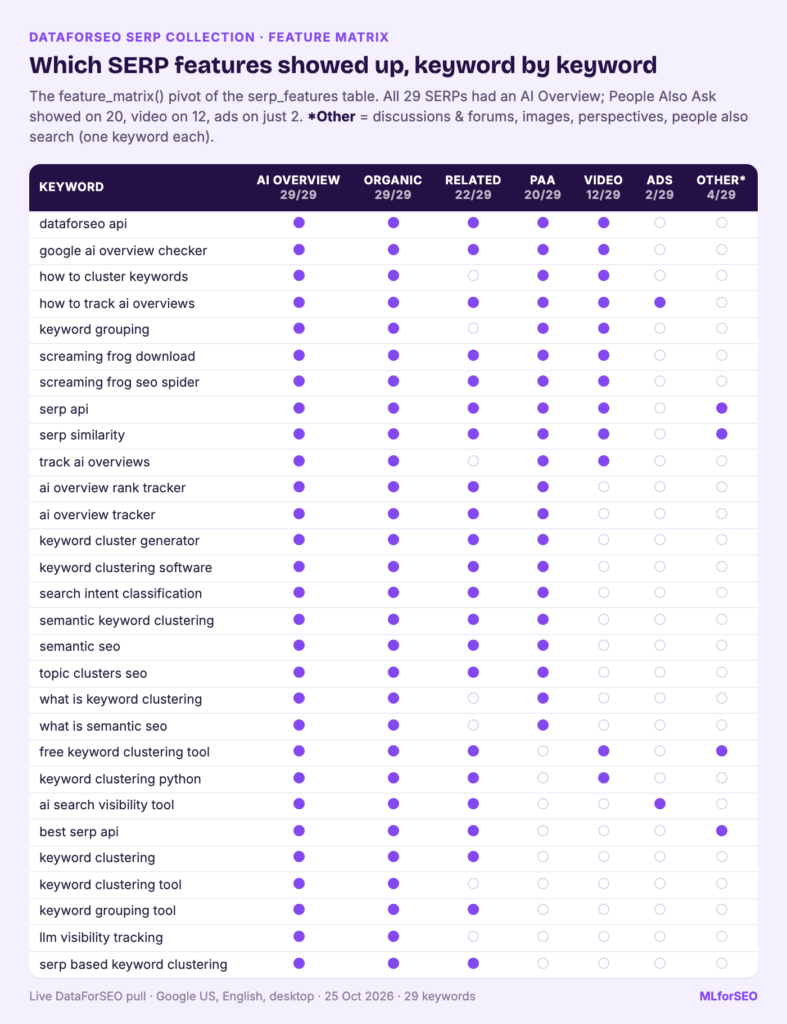
The SERP feature matrix. One row per keyword and one column per element type. All three sample SERPs had an AI Overview, People Also Ask and related searches. Only “screaming frog download” had a video block. This pivot is the input for SERP feature analysis,.
People Also Ask. Four questions per keyword, in display order. For “screaming frog download” they were “How to get Screaming Frog for free?”, “How much does a Screaming Frog license cost?”, “How to export data from Screaming Frog?” and “How to find broken links on Screaming Frog?”. For “what is entity seo”, one of the four was “Is SEO dead now with AI?”, which tells you something about the mood of the audience. Read more about People Also Ask in the glossary.
AI Overview citations. The “what is entity seo” answer cited 10 URLs, starting with neilpatel.com, demandspring.com and inlinks.com. Some citations also carry the heading of the answer section they support, such as “Core Concepts: Keywords vs. Entities”. The “best running shoes” answer cited only three URLs: runrepeat.com, fleetfeet.com and rtings.com.
Organic results. Here’s where it gets interesting. None of those three running-shoe sources appears in that SERP’s organic top 10, which is led by weartesters.com, treelinereview.com and reddit.com. The AI Overview and the blue links drew on entirely different sites. Comparing the two systematically is exactly what the companion AI Overview Tracker does, and it’s why I argue your rank tracker is lying to you about AI search.
Three things to do with the tables straight away
1. Classify search intent from SERP features
Which features Google shows is a strong hint about what searchers want: shopping and product blocks lean commercial, videos and PAA lean informational. The feature matrix drops straight into the rule-based SERP-feature intent classification notebook. If you want the background first, read what SERP feature analysis is and how to use it and my overview of search intent classification approaches.
2. Mine People Also Ask for content briefs
paa.csv is a ready-made list of real follow-up questions. Group them by keyword cluster and you have subheadings and FAQ candidates for your briefs. Set PAA_CLICKS to 1 or 2 to collect more questions per SERP. This fits neatly into the workflow in how to turn semantic keyword research into an actionable SEO workflow.
3. Check who AI Overviews cite
ai_overview_citations.csv tells you which domains Google displays as sources for each answer. For your own domain, competitor gaps and citation share across a keyword set, use the AI Overview Tracker, which builds on this notebook. I walk through it in how to track AI Overviews for your keywords.
And if you want a fourth: the organic table is exactly what SERP-overlap keyword clustering needs. The free keyword clustering notebook takes a keyword, rank and URL export like this one and groups keywords that share ranking pages (more in SERP-based vs semantic keyword clustering).
Pitfalls and limits
- A SERP is a snapshot. One location, one language, one device, one moment. AI Overviews in particular change between pulls, so track over time before drawing conclusions.
- Prices change. The estimate uses October 2026 list prices. The cost log uses what the API really charged, so trust the log over the estimate, and check the pricing page before a large run.
- Live mode takes one task per call. The API enforces it. For hundreds or thousands of keywords, use Standard mode.
- Your credentials are yours. Never paste them into a cell, especially in a notebook you might share.
What to do next
Run the notebook on 10 to 20 of your own keywords in Live mode, look at the tables, then switch to Standard mode for anything bigger. Once you have a SERP layer you trust, everything else on this site gets easier: automating SERP analysis, intent work, clustering and AI search measurement. If you want more keyword data from APIs, my guide to the Google Autocomplete API for keyword suggestions is a good companion.
The full SERP collection lab, with keyword clustering and intent classification built on top of it, is part of my Semantic ML-enabled Keyword Research course.
Free notebook
DataForSEO SERP Collection Starter Notebook: run it free on three real SERPs, then point it at your own keywords with a spend cap you set.
FAQ
Is DataForSEO free?
No. It’s a paid, pay-as-you-go API: you top up a balance and each request is charged. At October 2026 list prices a top-10 Google SERP costs $0.002 in Live mode and $0.0006 in Standard mode. The notebook itself is free, and its sample mode runs without an account.
How much does it cost to pull SERPs for 100 keywords?
At most about $0.40 in Live mode with AI Overview loading switched on, and about $0.12 in Standard mode. The AI Overview surcharge is refunded when there’s no asynchronous AI Overview to load, so the real figure is usually lower: a real run of 29 keywords on 25 October 2026 came to about $0.26 per 100 keywords in Live mode. The notebook shows a worst-case estimate before it runs.
Do I need to know Python to use the DataForSEO API?
Not for this notebook. You change a few settings, paste your keywords and run the cells in order. Reading the code is a good way to learn, though, and the request itself is only a few lines.
Can I get UK or mobile results?
Yes. Set LOCATION_CODE = 2826 for the United Kingdom (any other location code works too) and DEVICE = "mobile". Each run covers one location, language and device, so run it once per combination you care about.
MLforSEO Academy
Take your skills further — pick your path
Semantic ML-enabled Keyword Research
by Lazarina Stoy
Query understanding, search intent and semantic clustering for how people and AI really search.
View course →AI Search Optimisation & Agentic SEO
by Beatrice Gamba
How agentic systems retrieve, evaluate and select — and how to become the source they cite.
View course →AI Search, LLMs, Entity SEO & Knowledge Graph Strategies
by Beatrice Gamba
Build the entity authority and knowledge-graph presence that makes AI recognise and trust your brand.
View course →Introduction to Machine Learning for SEO
by Lazarina Stoy
Ship practical ML workflows — classification, clustering, entity extraction — no CS degree required.
View course →